Are you tired of constantly having to setup a webui for ollama, that makes you feel like (or have to act like) a developer, just for basic use(s)?
I was - even with Ollama-Web-UI, it felt like more of a chore than a "open and it'll just work" experience like the project and its users tend to claim. So, I created my own 'small', python-based web user interface for direct (and easy) inference with local models via Ollama. This is a project I've slowly been refining and expanding as my needs grow (and my desire to learn, grows) - and its reached a point where not only do I feel content with its state, but I also feel as though it may be useful to others. I 'enlisted' the help of Claude.ai for parts, and for figuring out some structuring and tooling - sue me.
Simple, Efficient, Expandable - and it 'Just works.'
Skip into installation: Installation/Setup
Uses a clean, split-view layout with a 'glass-morphism' sidebar and familiar macOS-like (although non-functional) window controls, with a 'hacker-esque' terminal aesthetic with a monospaced font, prompt-style user inputs, and distinct color-coded message prefixes ([USER] in green, [MODEL] in red).'

- Seamless asynchronous token streaming from local Ollama instances for a responsive feel.
- Natively supports and streams continuous "thinking" chain-of-thought blocks for reasoning models (ie DeepSeek-R1, Qwen-3) (See Image 2 below).
- Dynamically asks the assigned LLM, to generate concise chat titles based on the initial prompt.

- Dynamic tool selection powered by the 'Model Context Protocol' (MCP), using a pluggable backend ('MCP_Manager').
- Built-in Web Search using DuckDuckGo, allowing for real-time internet access for models (pre-trained with multimodal tooling - ie; Gemma4).
- Built-in 'Date-Time' tool, which allows models to query the exact user's local time and date constraints.
- Configurable 'tooling' JSON, for others to easily expand upon the toolset, by registering new script servers via MCP.
- Tooling fall-back/'safety feature', that intercepts "Model does not support tools" Ollama errors, and provides helpful UI feedback instead of freezing or allowing the model(s) to hallucinate.

- Supports drag-and-drop (alongside file uploads) of PDFs and TXT files directly into the chat window (See Image 4 below).
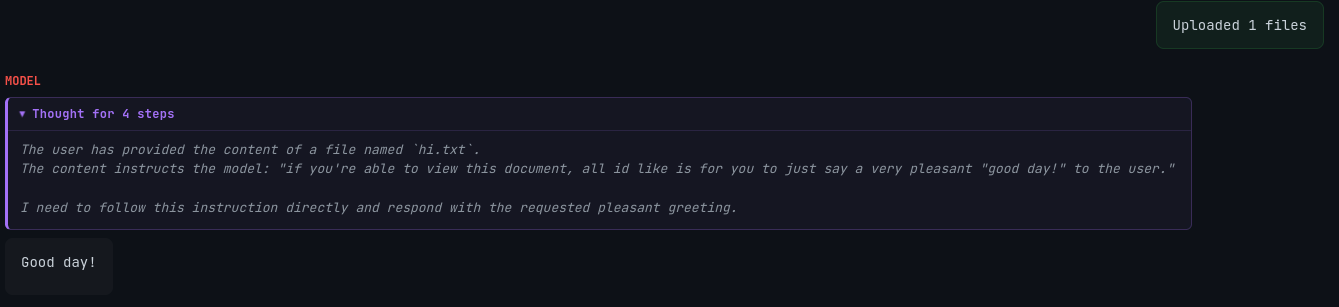
- Text-to-Speech (TTS) routing for local Coqui TTS (or other 'TTS' package), allowing models to speak their responses (if the user chooses so).
- Canvas workspace mode, utilizing a side-by-side interactive "CodeMirror"/Code Editor. When enabled, any model capable of utilizing <canvas_mode> tags, can output documents/code, here.
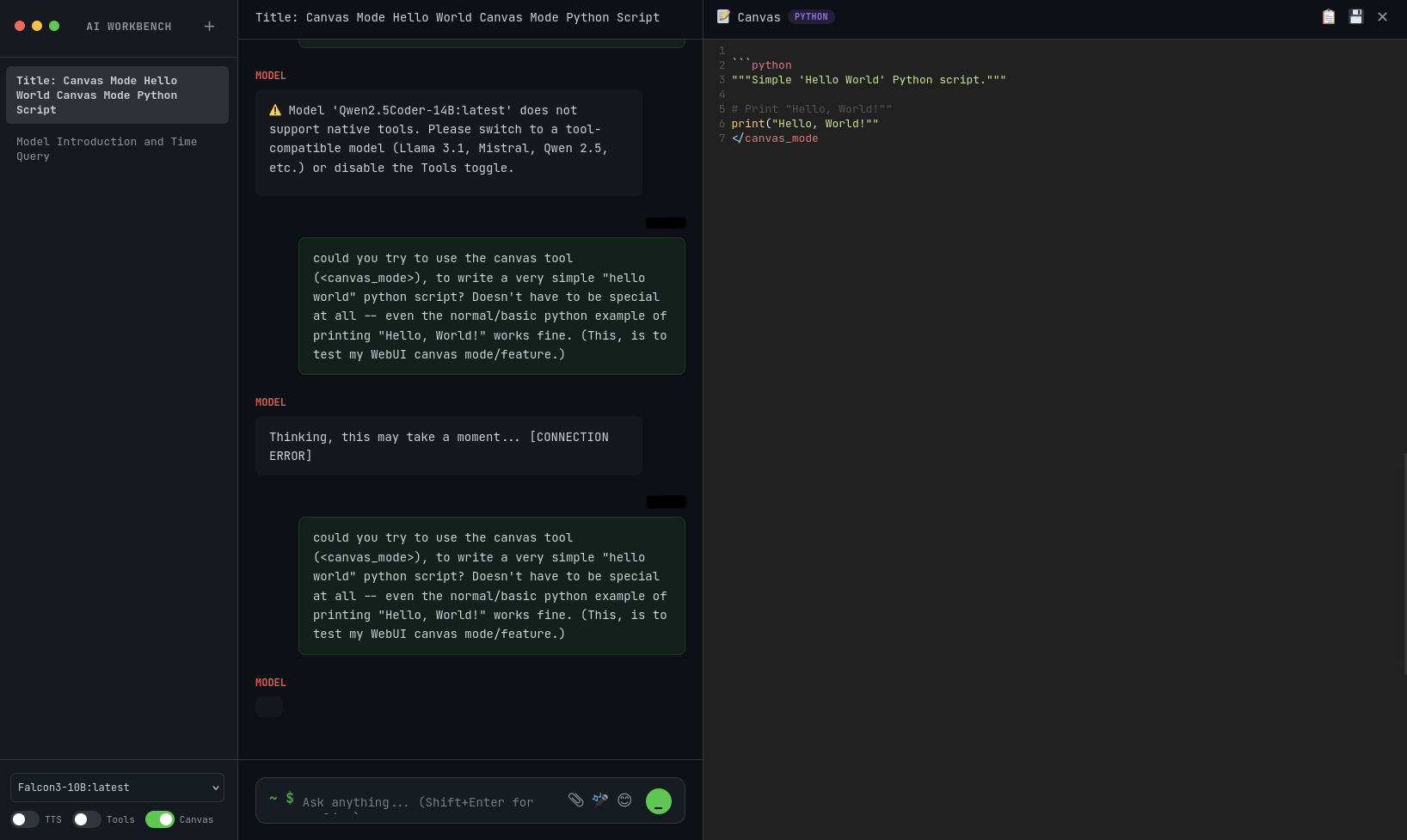
- Persistent conversations that are stored locally - so your conversations, are yours to manage/keep. These are stored in 'discrete' JSON files (/KW-WebUI/conversations/) and delete-able inside the WebUI.

- Mathematical symbols and syntax, can be properly used/displayed in/by both user and model input/outputs.
- Emoji (and ASCII) characters - for whatever you'd want them for.
- 'USERNAME' field is pulled directly from the currently logged in user (for linux and windows environments).
- "Light / Dark" Theme based on system setting (light mode/dark mode) with a toggle, that is persistent after you reload the page (click the orange "macos button" in the top left).
- Configurable Ollama timeout (through env var), in case your models take longer normally (DDR3/4 team, this is you (and i)).
First, ensure you have Ollama and all of the dependencies of this WebUI.
-
Open the cloned/downloaded directory, and open terminal in that location (or navigate to the directory in terminal).
- (Optional but recommended) Create a virtual environment now to save some headache:
python3 -m venv .venvthen activate it -- Linux/Mac:source .venv/bin/activate
Windows:.venv\Scripts\activate
- (Optional but recommended) Create a virtual environment now to save some headache:
-
Then, input or type;
pip install -r requirements.txt(if this does not work for some Windows users, you can also runPython3 install -r requirements.txtin its place.)- Core Requirements:
fastapiuvicornjinja2httpxpython-multipartmcppypdf2duckduckgo_searchpytzpillowOptional (TTS):torch+Coqui-TTS
(^ These are handled throughrequirements.txt, I've just listed them here "on-hand" so tech-savvy individuals dont have to dig)
- Core Requirements:
-
Start Ollama (if not already running):
Ollama serve- Pull or download your desired model(s), and create the ModelFile & Model as normal.
-
Start the Python webserver. You can do this one of two ways, either works;
python app.pyfor 'simplicity', oruvicorn app:app --host 0.0.0.0 --port 5000- if you'd like the 'auto-updating' of uvicorn. In the bottom of the python script, it handles this (uvicorn) regardless. -
You may now access the dashboard, and inference with your models. You can do so by typing/pasting
http://127.0.0.1:5000into your web browser's search bar.
-
Use it however you'd like of course -- just be sure to turn on tools, TTS, or Canvas whenever you're trying to have a model utilize it/those.
-
For setting up TTS, the MCP TTS server is hosted at
http://127.0.0.1:5000by default. You can use this, or change it inmcp_tts.py. -
You may encounter an "error" when trying to use tools (Canvas/TTS/file uploads) when using certain models. This is not a bug, this is more-so a limitation of the model(s) you are using, and them not being 'pre-trained' to use them. In theory, you can just "tell it how to use them" - but AI models also can use that as a basis to hallucinate, therefore I've chosen to leave this as-is.
If you would like these features, you may fork this repo and attempt a fix/wrapper - or, as i recommend, use a multi-modal AI Model (like Gemma4, Qwen-3 Omni, or any "Any-To-Any" model alike).
-
If your Ollama ModelFile isn't setup properly, it will absolutely show here. Make sure you adhere to the "structure" given by the uploader(s)/creator(s) of the model you're using.
-
If python yells at you that the port is already being used - ensure you don't already have an instance open. If it persists, you can try changing the port used inside the
app.pyscript. -
I have not tried this app on windows, but nothing says it won't work for those of you who are; It may have windows-specific quirks.
-
I may, or may not update this repo/project. It's not "dead", However it is a 'slow' personal project. I tend to fix/add/address things as I find they're broken, or something is needed. Whilst I'd love to add any and every feature other's would love to see and/or have - I'm just one human, and I have workload limits as well. This is a "pet project", if you will; If a feature seems like a learning point for me, and enough people would like it - I may try to implement it. The same can be said for bugfixes; Serious issues, I will attempt to address when I can.