Tuition-E is a Java powered software made for peer to peer network connection using Java, JavaFX, JavaX, SQLite, Jfoenix and I don't know what more!
This project now uses Gradle for build automation. All dependencies are managed automatically.
./gradlew build./gradlew run./gradlew fatJarThe JAR file will be created in build/libs/Tuition-E-all-1.0.0.jar
All dependencies are automatically managed by Gradle:
- JavaFX 11 - UI framework
- JFoenix 9.0.10 - Material design components
- SQLite JDBC 3.43.0.0 - Database connectivity
- Webcam Capture 0.3.12 - Video call functionality
- TrayTester - Push notifications (local JAR)
- Screenshare
- Remote Control
- Whiteboard
- Saving Tasks
- Chat
- File share
- Audio Call
- Video Call
- Profile section
- Notifications
- And lots more
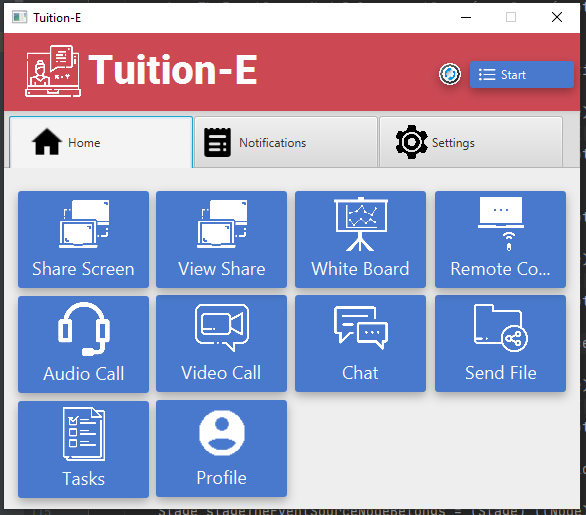
- Launch the first instance of the app
- Go to the "Settings" tab
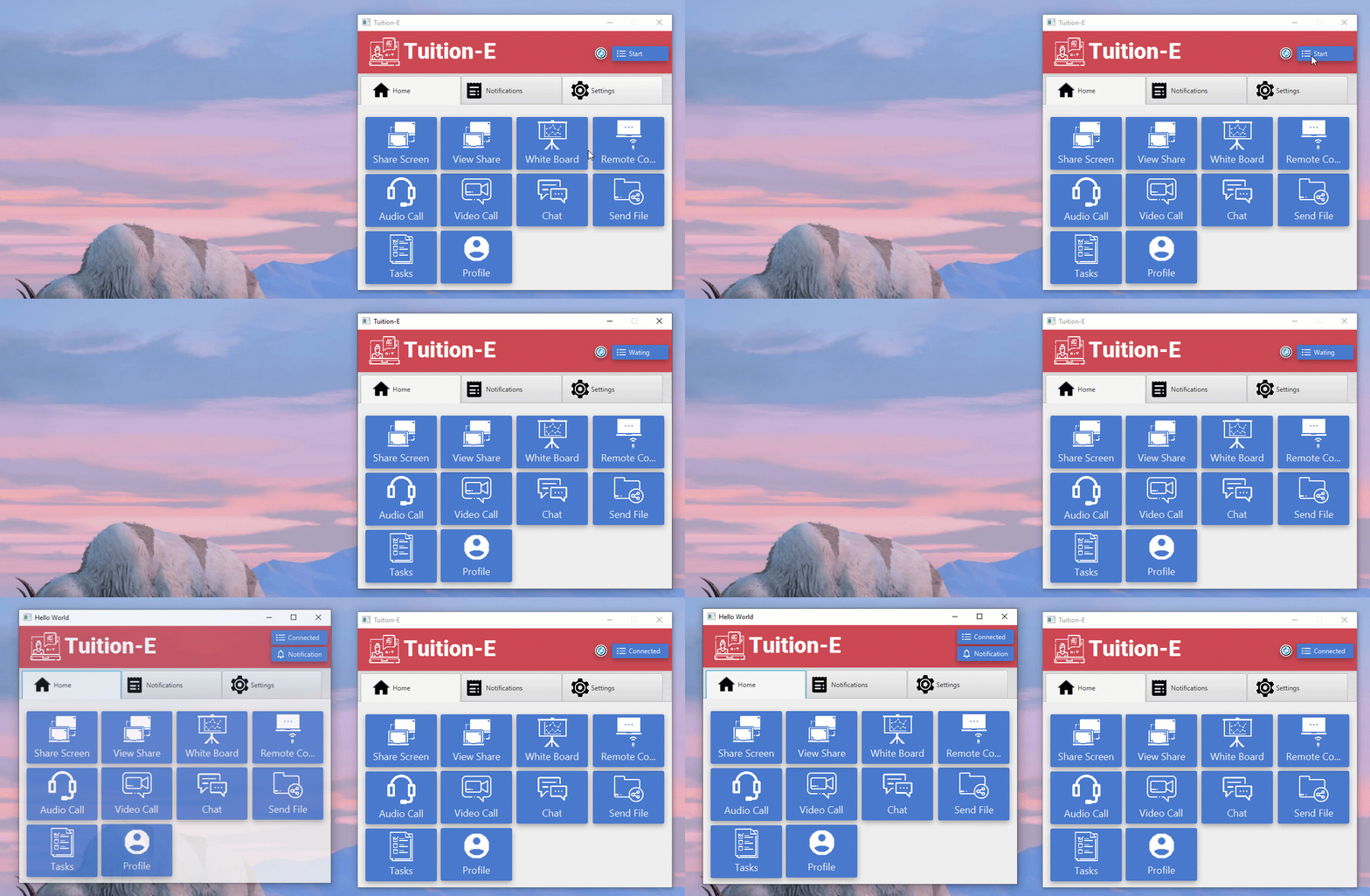
- Click the "Start Server" button
- The server will display an address like
192.168.1.100:26979 - Share this address with the client (copy it and send via text, email, etc.)
- Wait for the client to connect
- The status indicator at the top will show "● Connected" in green when a client connects
- Launch the second instance of the app (can be on the same computer or different computer on the same network)
- Go to the "Settings" tab
- Enter the server address (e.g.,
192.168.1.100or192.168.1.100:26979) that the host shared with you - Click the "Connect" button
- If successful, you'll see "✓ Connected" status and the top indicator will turn green
- If both instances are on the same computer, use
127.0.0.1:26979orlocalhost:26979 - You can just enter
127.0.0.1(port 26979 is used by default)
- Both computers must be on the same local network (WiFi/LAN)
- Use the IP address shown in the server's "Share this address" field
- Make sure no firewall is blocking port 26979
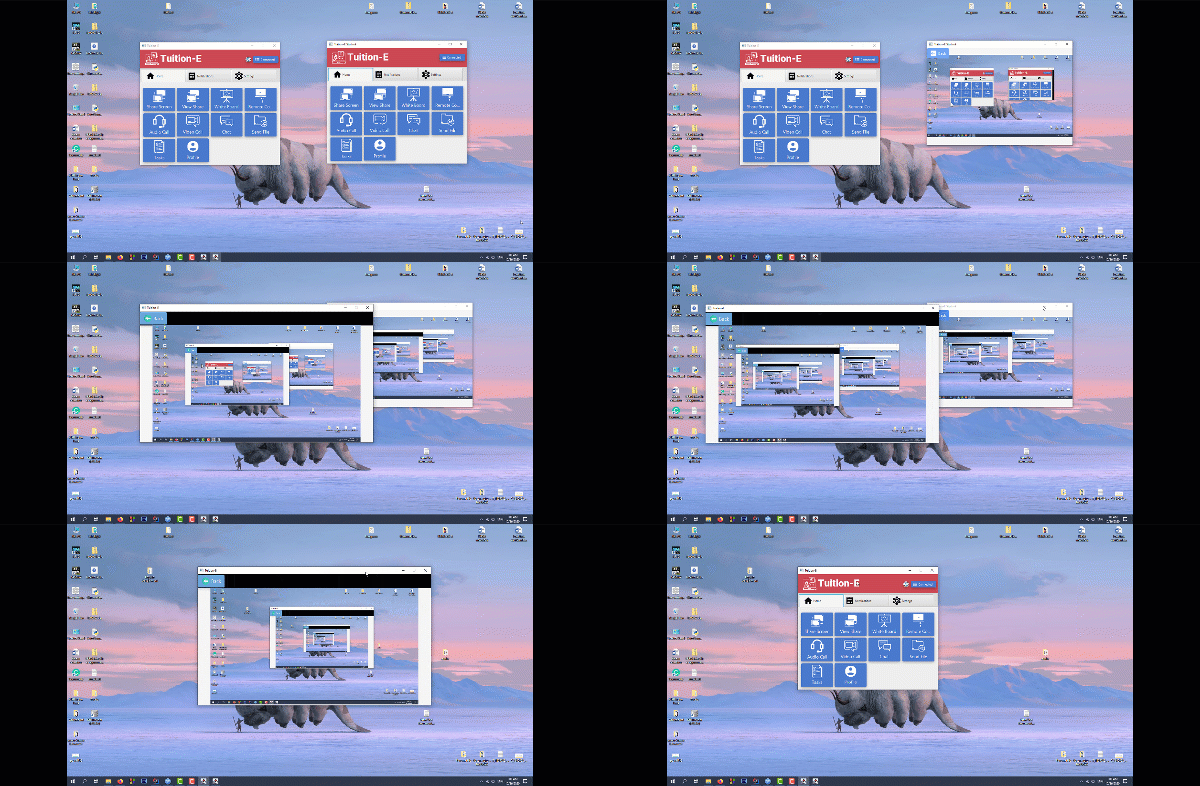
Both the user can share their screen with one another using realtime screenshare and view share option. Just click and minimize and do your job. That's it
- 2:1 display ratio [Can be converted to 1:1]
- Two way share screen
- Seperate Share screen and view share option
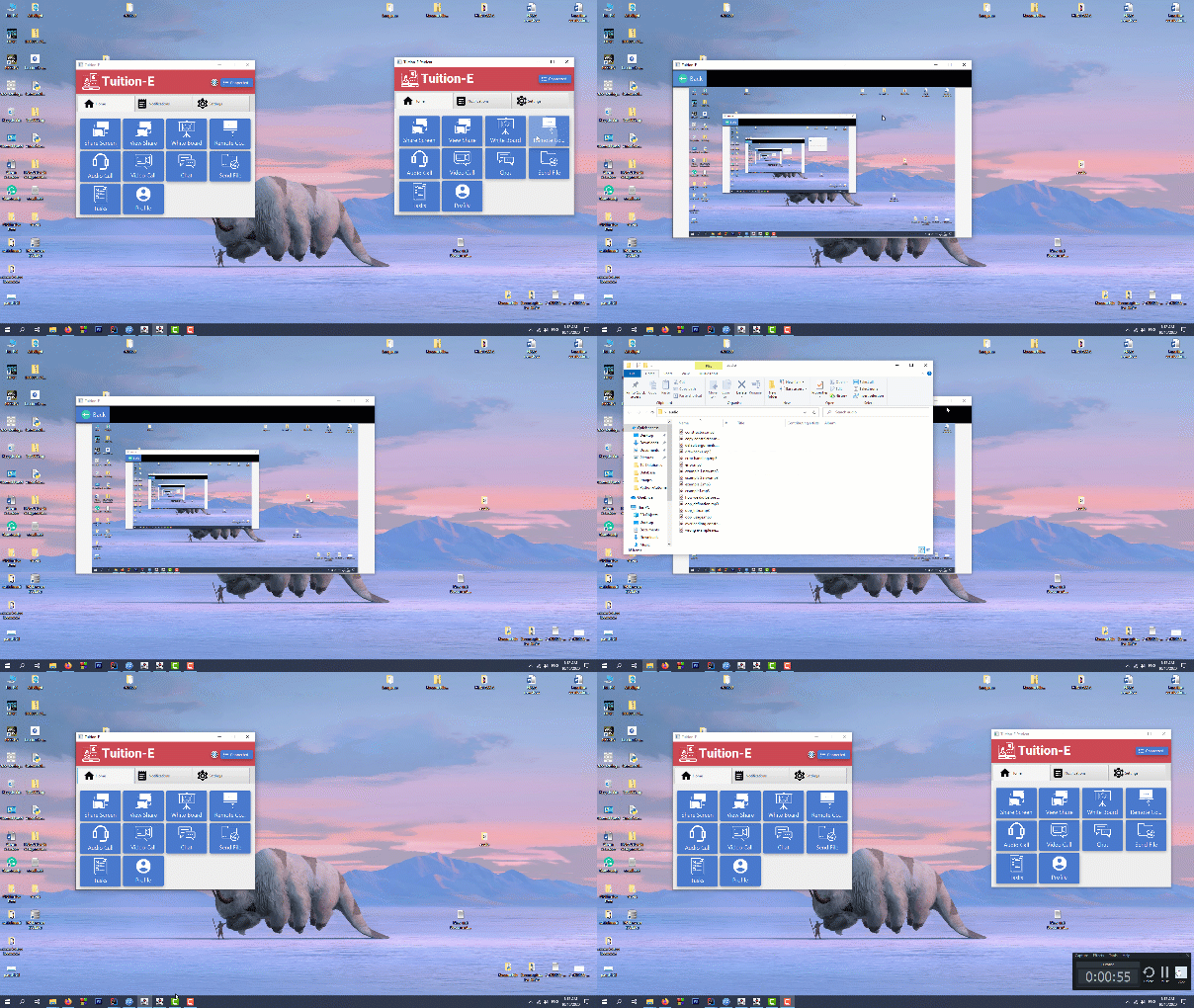
This is a light weight remote control function that allows only mouse click events between peers. And as of such only the host can enable remote control.
- 2:1 screen display
- Primary and Secondary Mouse event
- Supports multiple click
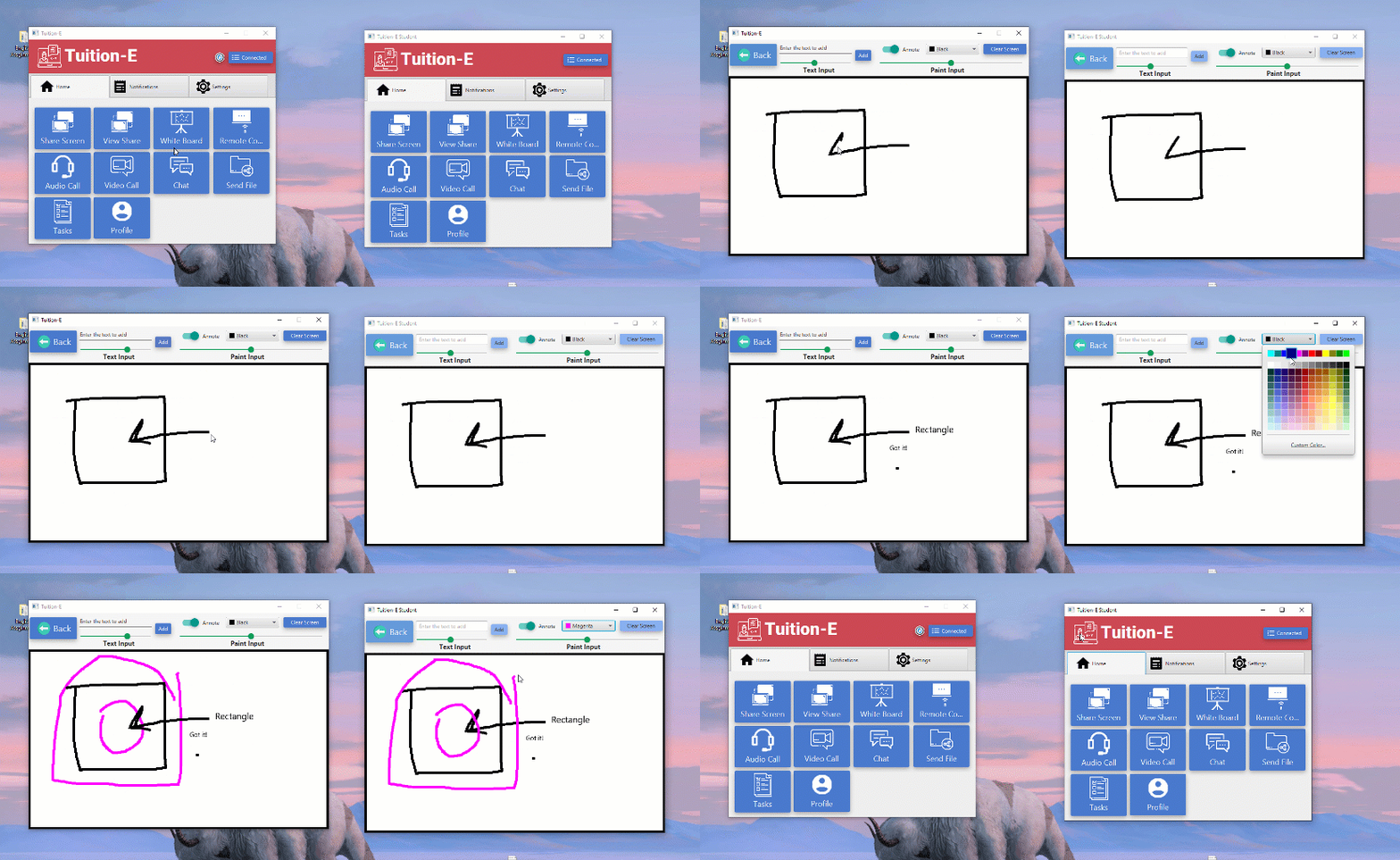
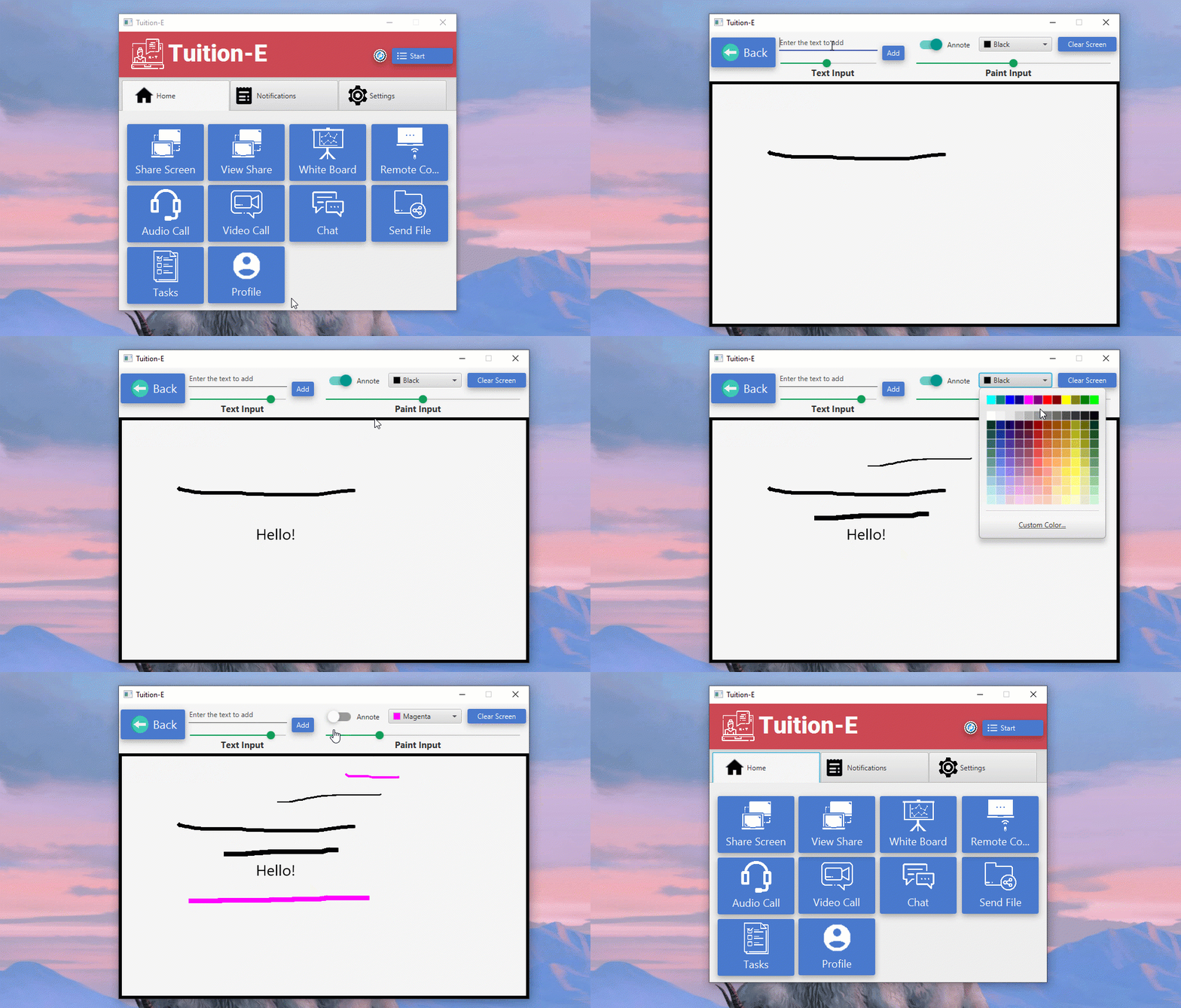
The whiteboard feature allows both the user to share a board and with some handy features the experience would be excellent
- Sharable whiteboard
- Simultaneous usability by both user
- Toggle annote
- Free writing and drawing
- Both pen and type feature
- Resizable pen/brush tip
- Custom color for pen/brush
- Type tool to write texts
- Resizable texts
- Clear Screen
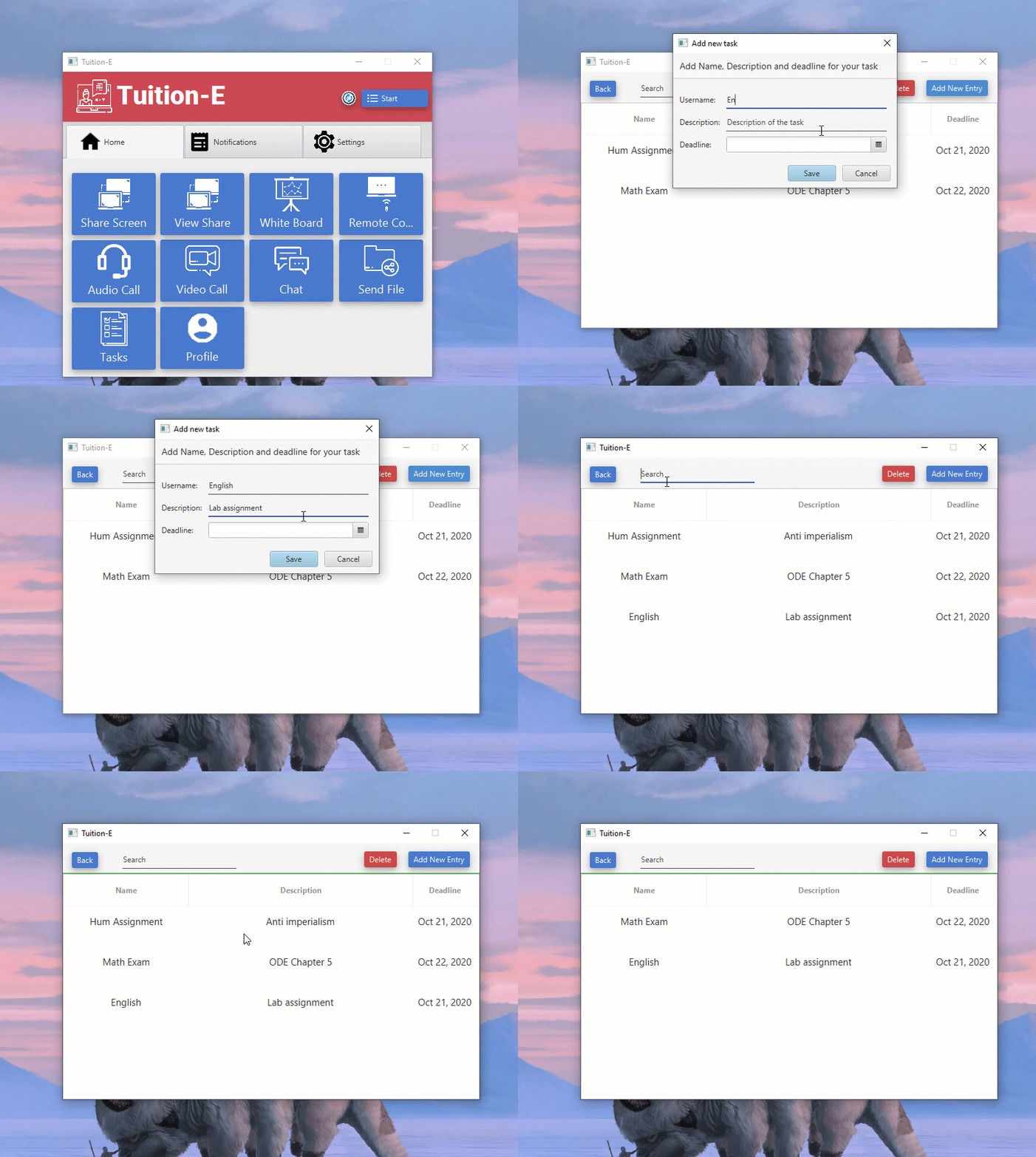
Used SQLite database here to store the tasks lists.
- Data persistance
- Add new tasks
- Delete selected task
- Search for task
- Sort by value for any column
- Set date efficiently
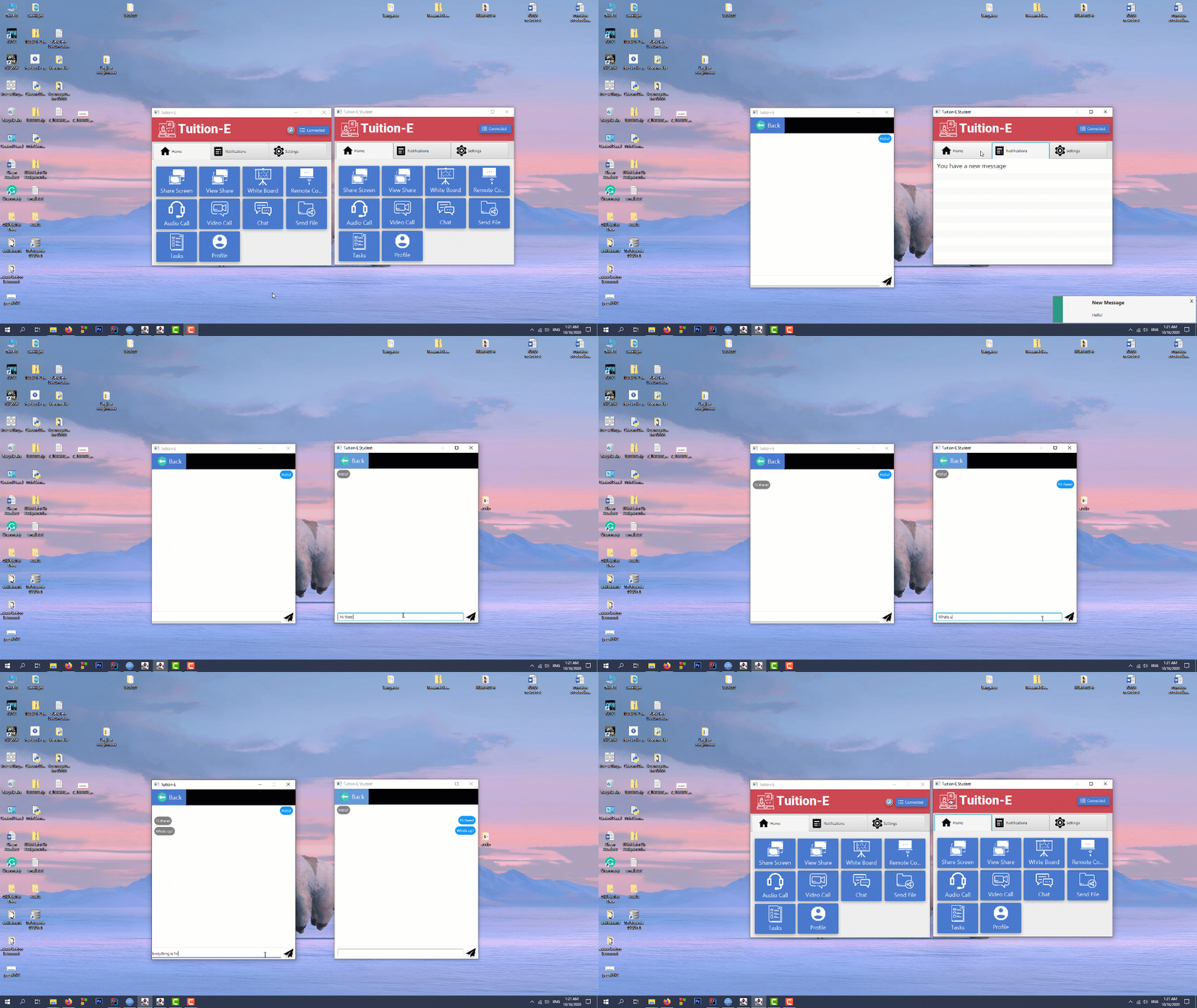
Chat window features a simple but attractive chat gui where the users can share their thoughts
- Seperate Sender and Reciever [Left right] message display
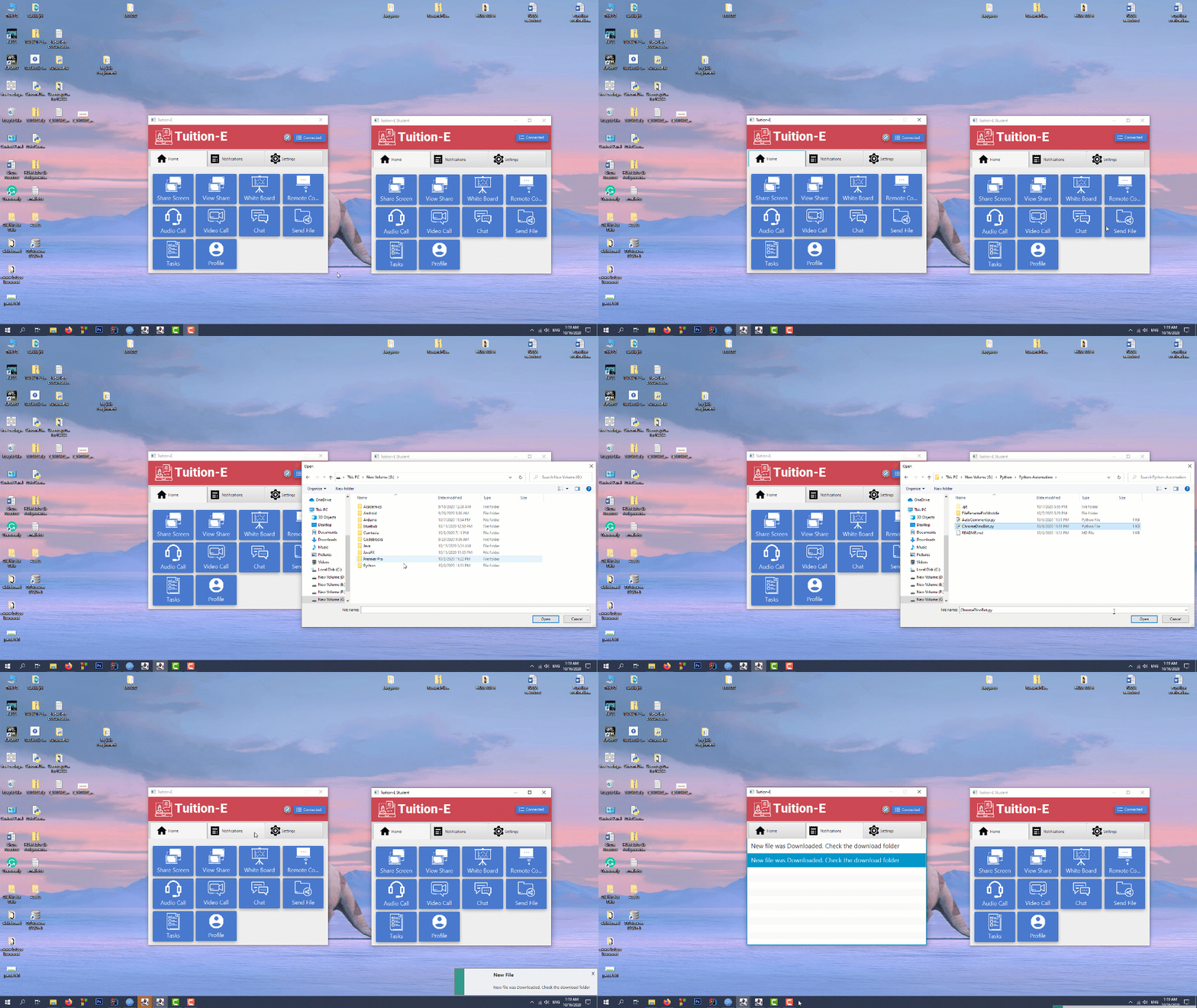
The File share option allows user to upload and download files to and from the peer. The transfer rate is pretty good i guess.
- Supports all kind of file type
- Changable download directory
- Supports upto 250 MB file with no pressure
Although not tested ( cause my mic is broken ) this allows the users to directly call each other. The voice gets slightly broken.
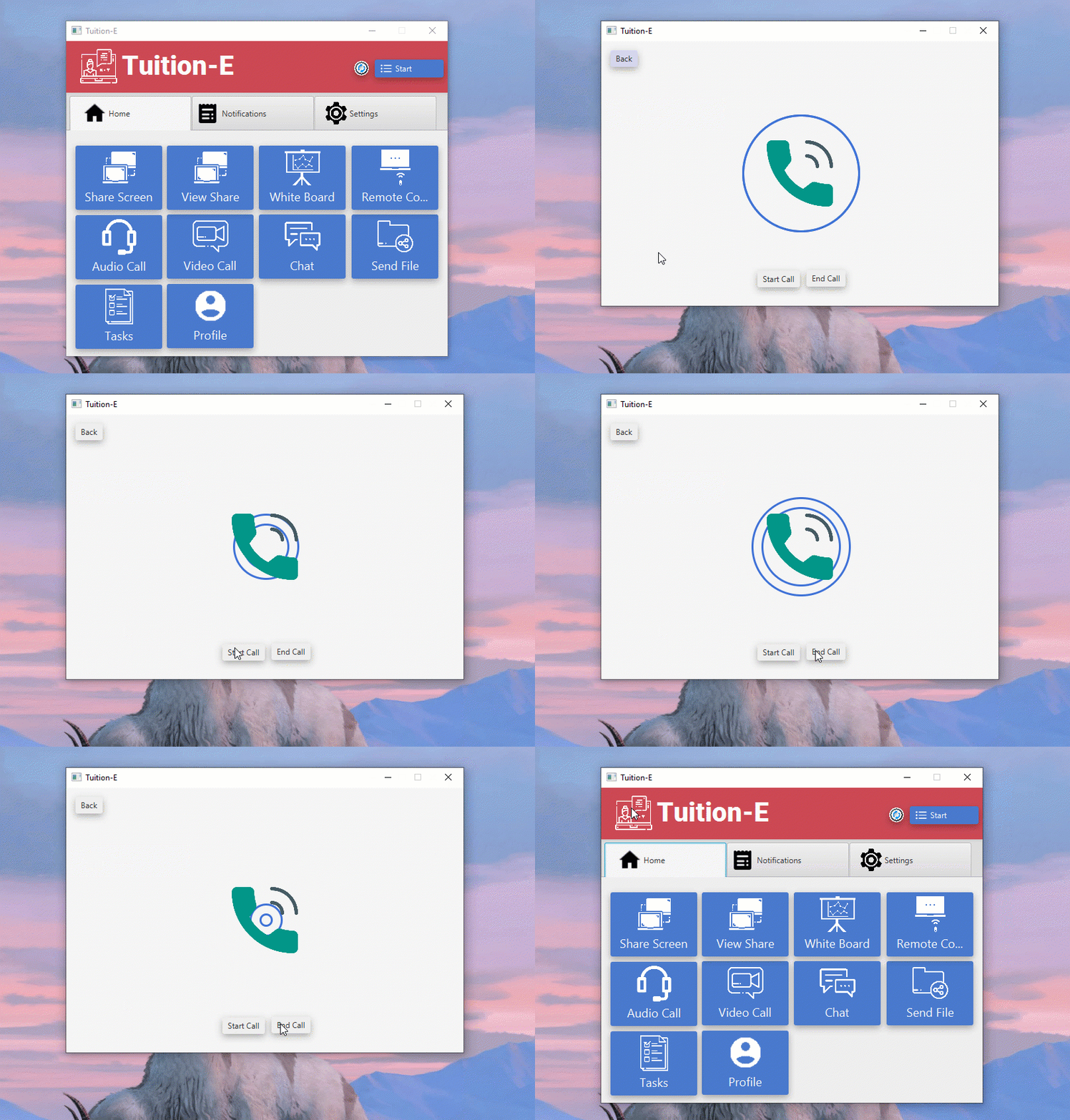
Same problem here! My webcam is also broken. Will update this feature asap!
The user can change his or her profile section too!
- Data persistance
- Editable name and description
- Set image from local device

So far the app send notifications for new messages and new file recieved.
- Push notifications in the lower right corner of screen of type showaAndWait
- In memory saved notification with seperate screen

Finalist in Haccelerate 2020
Top 14 among 1700+ teams