

Video Demo: https://youtu.be/GJp96KA49zw
This is my final project for Harvard's CS50x course. It is a website named PassBank50 in order to provide the minimal functionalities like a password manager. Everyone can use the feature with just creating a user account for yourself.
PassBank50 is a project that manages websites and passwords for you. Every user have to create an associated account for self and it can be managed by their own. The user can also be updated their information such as changing username or password or resetting password. The main feature of the program is to store the login username and password for any websites. It can be added individually or import from the csv files. These added information can be view from their dashboard.
The program can be run with only one command from your terminal. Make sure you are in the passbank50 directory and just type the following command.
$ python run.py The only icon used in my project is "the three-finger salute" originated from Hunger Game.
It is the honor for OUR HEROES who sacrificed their lives during
Burma Spring Revolutionagainst the military coup.
- User account registration
- User account management
- Add websites and passwords one by one
- Import passwords from Google Chrome or Microsoft Edge in
csvformat - View added websites and passwords from dashboard
- Python
- HTML
- CSS
- Flask
- flask_sqlalchemy
- flask_wtforms
- flask_login
- flask_mail
- Bootstrap
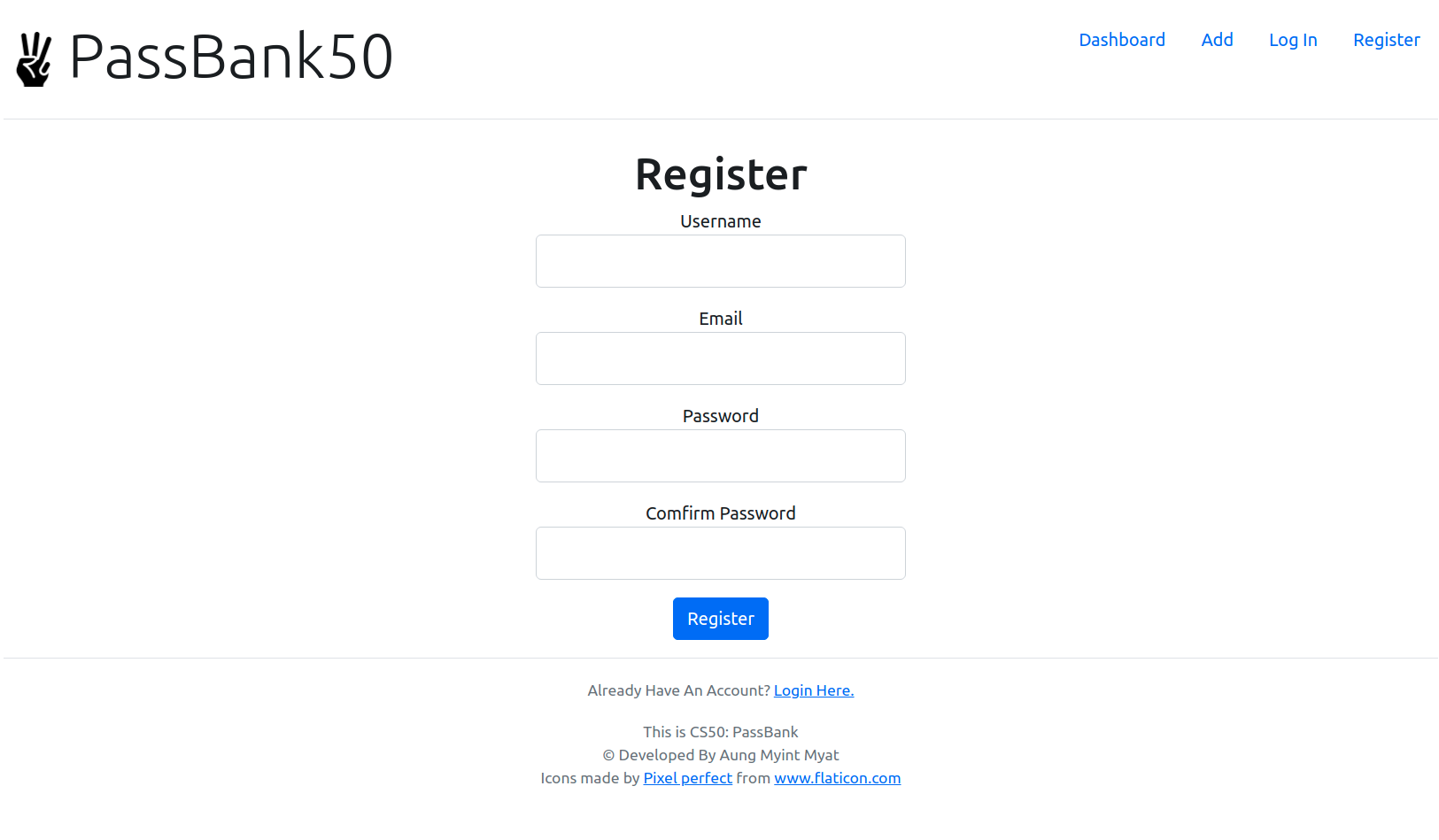
- Every new user must create a user account.
- It has to provide a username, an email, a password and a confirmation password.
- On click
Register, each data provided by the user is tested to meet the requirements such as duplicated username or invalid email. - If pass, It will straight through to the
Loginpage.
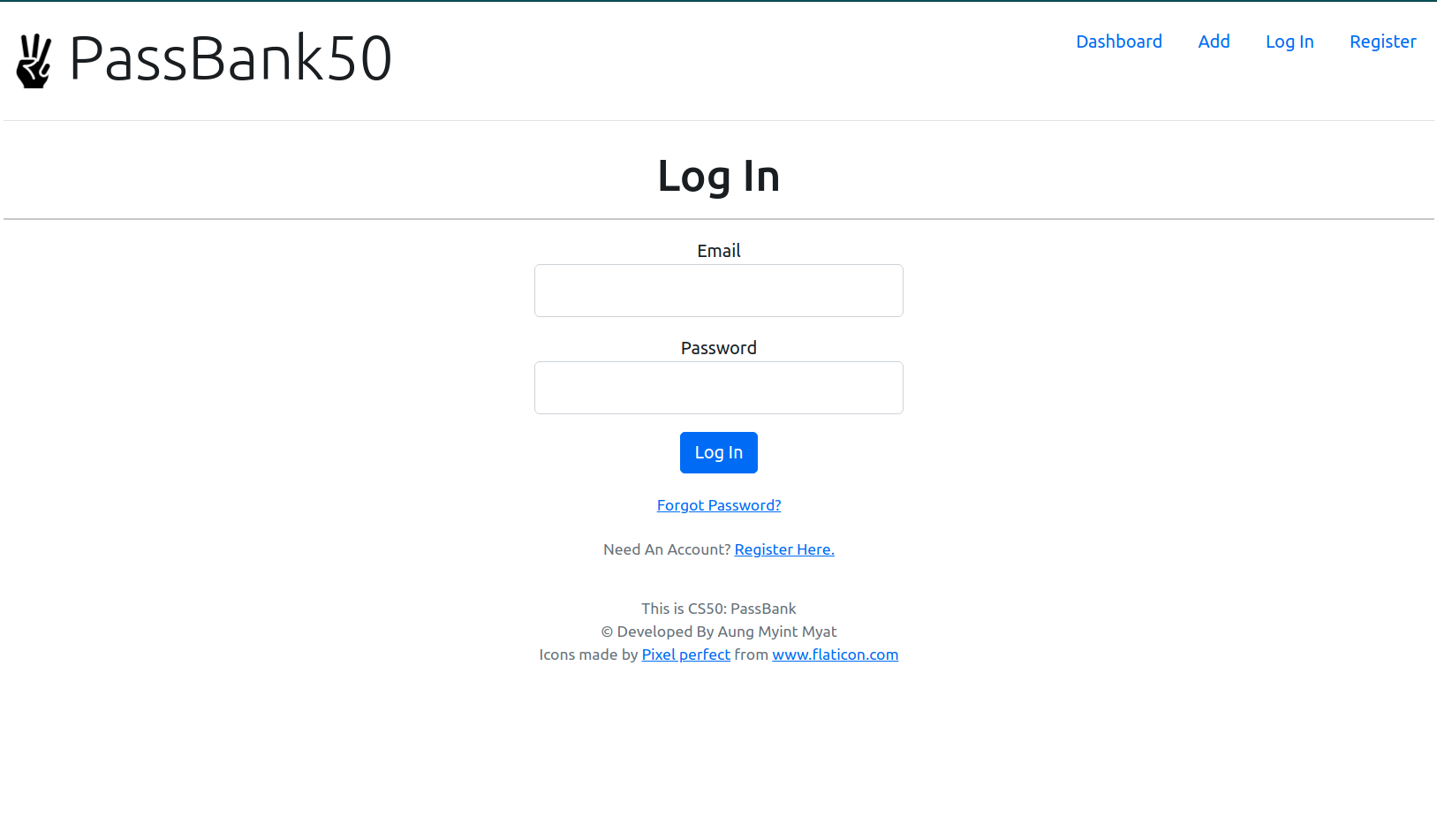
- To log in, the user must provide the registered email and password.
- If not the registered email, it will head to
Registerpage for registration. - With the registered email and incorrect password, it will need to log in the right ones.
- If the password is forgotten, it can be resetted by clicking
Forgot Password?. - It will ask the email to reset password.
- On submitting, a mail will be sent with the password reset link via the provided email.
- Copy and paste the link in browser, change the password and now you can log in with the new password again.
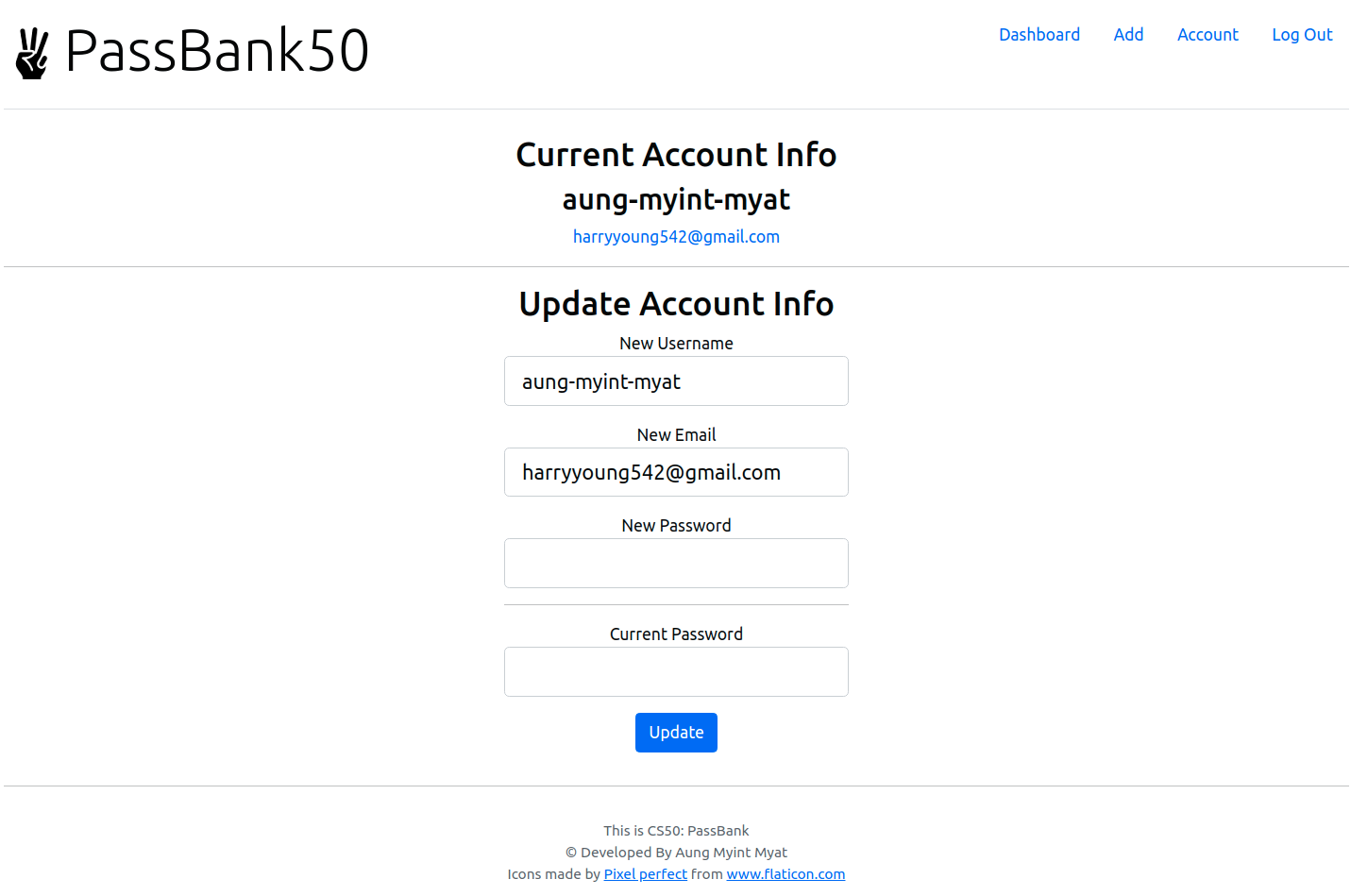
- Under
Accounttab, it is provided with the current user information and to update these information. - Each user can be changed either one or all of the info like username, email or password by giving the current password.
- With a successful change, the infomation will be updated with the new ones.
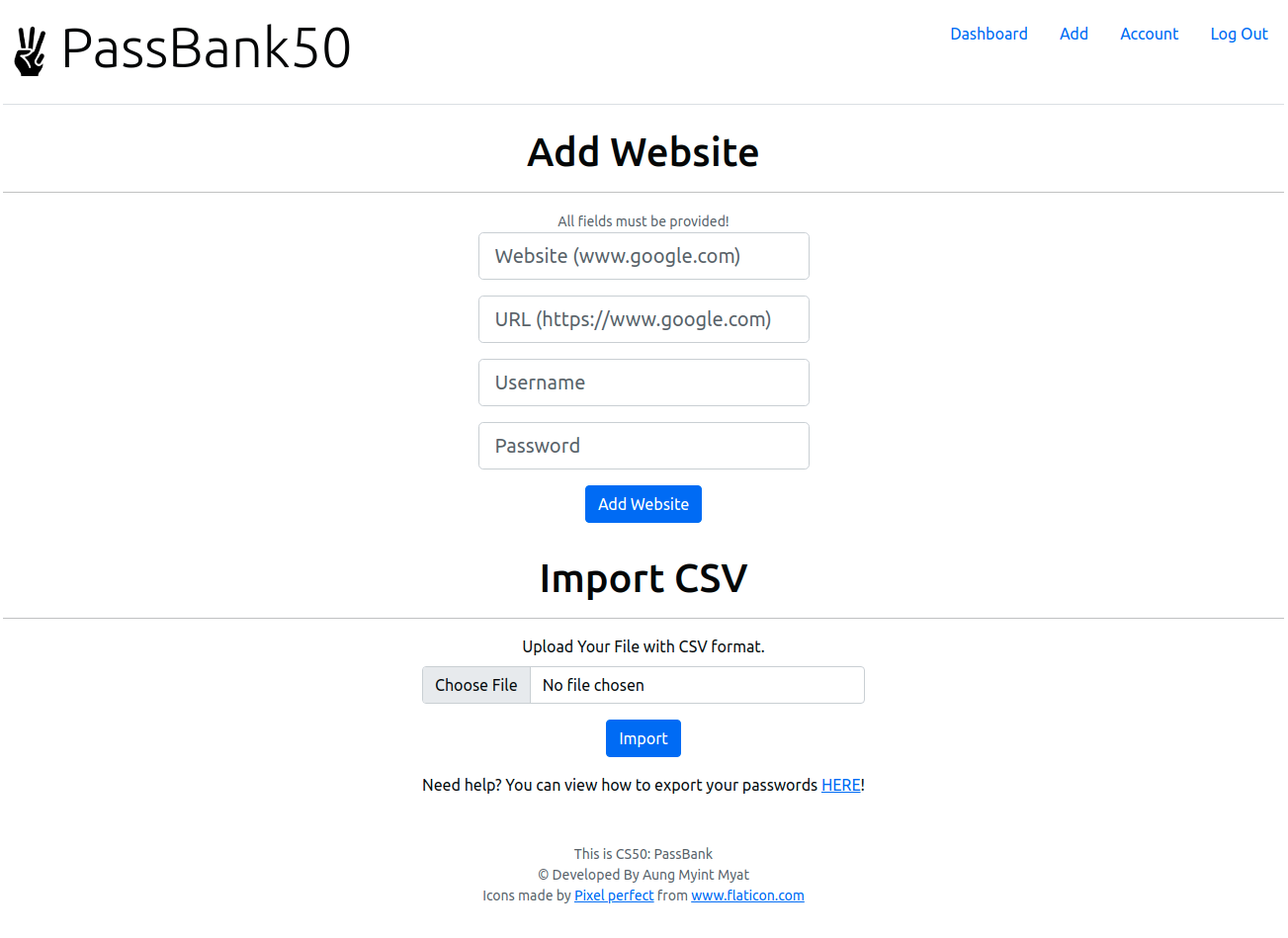
- The user can add websites and passwords individually or import with the exported
csvfile.
- The dashboard shows all the added websites and passwords for the current current.