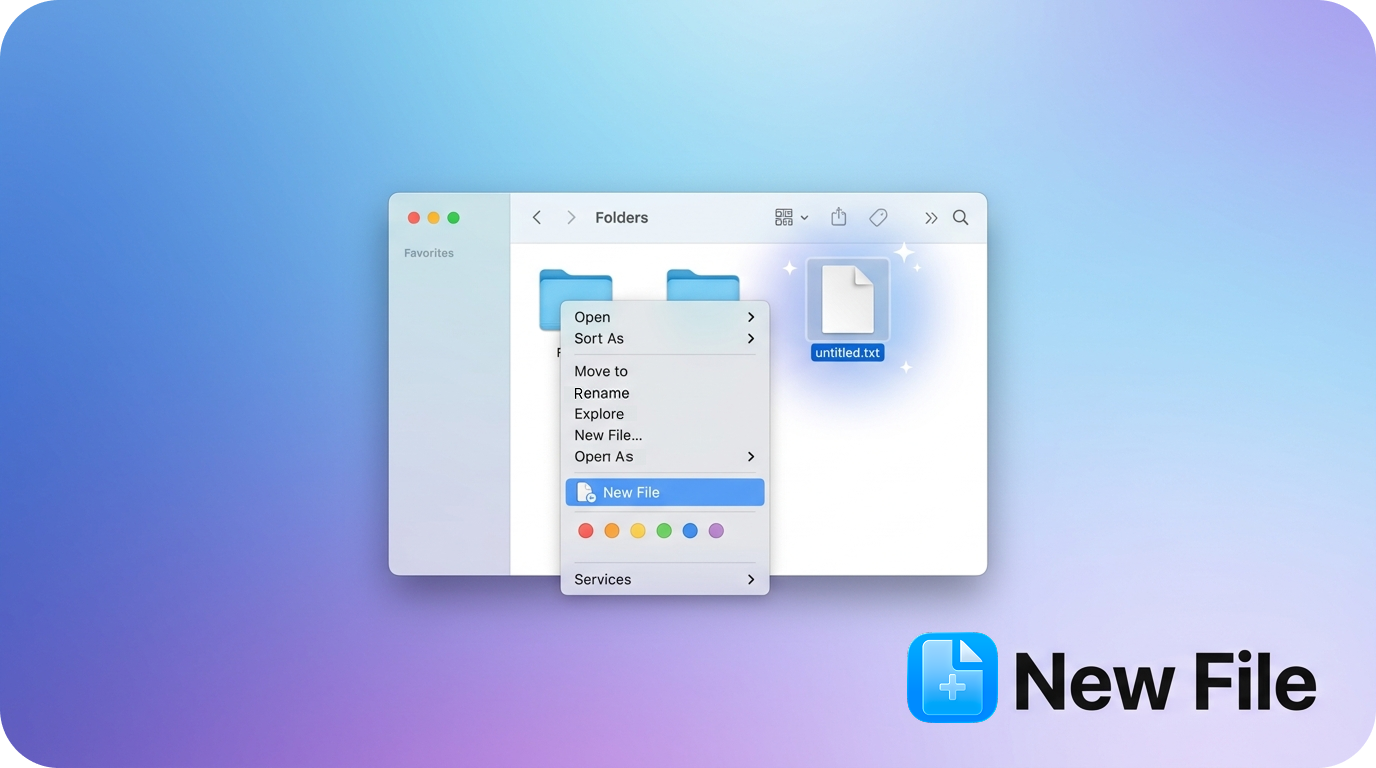
A tiny, invisible macOS helper app that creates a new empty file in the folder you right-clicked — wired into macOS Finder's right-click menu via OpenInTerminal.
It has no window, no Dock icon, and no UI of its own. It's launched, does its one job, and quits.
new-file_demo.mp4
OpenInTerminal adds a right-click context menu to Finder and the Desktop, and lets you register arbitrary apps under Preferences → Custom → Custom Menu Options. When you pick one of those apps from the menu, OpenInTerminal simply runs:
open -a "New File" /path/to/whatever/you/right-clickedThis app receives that path via the standard macOS "open" delegate callback, and:
- if the path is a folder (or you right-clicked empty space in Finder/Desktop) — creates a new file inside it
- if the path is a file — creates the new file in that file's parent folder
The new file is named untitled.txt, incrementing to untitled 2.txt, untitled 3.txt, etc. if a name is already taken. It then reveals and selects the new file in Finder so you can immediately rename it — except when the file lands on the Desktop, since Desktop icons are already visible without opening a Finder window.
- OpenInTerminal installed and running
⚠️ This app is currently unsigned and not notarized, so macOS Gatekeeper needs a couple of manual overrides before it'll run.
-
Download the latest release from the Releases page and unzip it.
-
Move
New File.appto yourApplicationsfolder. -
If you see an error saying "New File" is damaged and can't be opened, run:
sudo xattr -rd com.apple.quarantine "/Applications/New File.app" -
The first time it needs to create a file on your Desktop or in Documents/Downloads, macOS will prompt you for permission — approve it. To make sure that approval sticks across future updates instead of prompting again, give the app a stable local signature:
sudo codesign --deep --force --sign - "/Applications/New File.app" -
Register the app in OpenInTerminal — see Setting up in OpenInTerminal below.
New File.app has no menu entry of its own. Once it's in /Applications, you add it as a custom menu option inside OpenInTerminal, which is what wires it into Finder's right-click menu.
1. Add a custom menu option
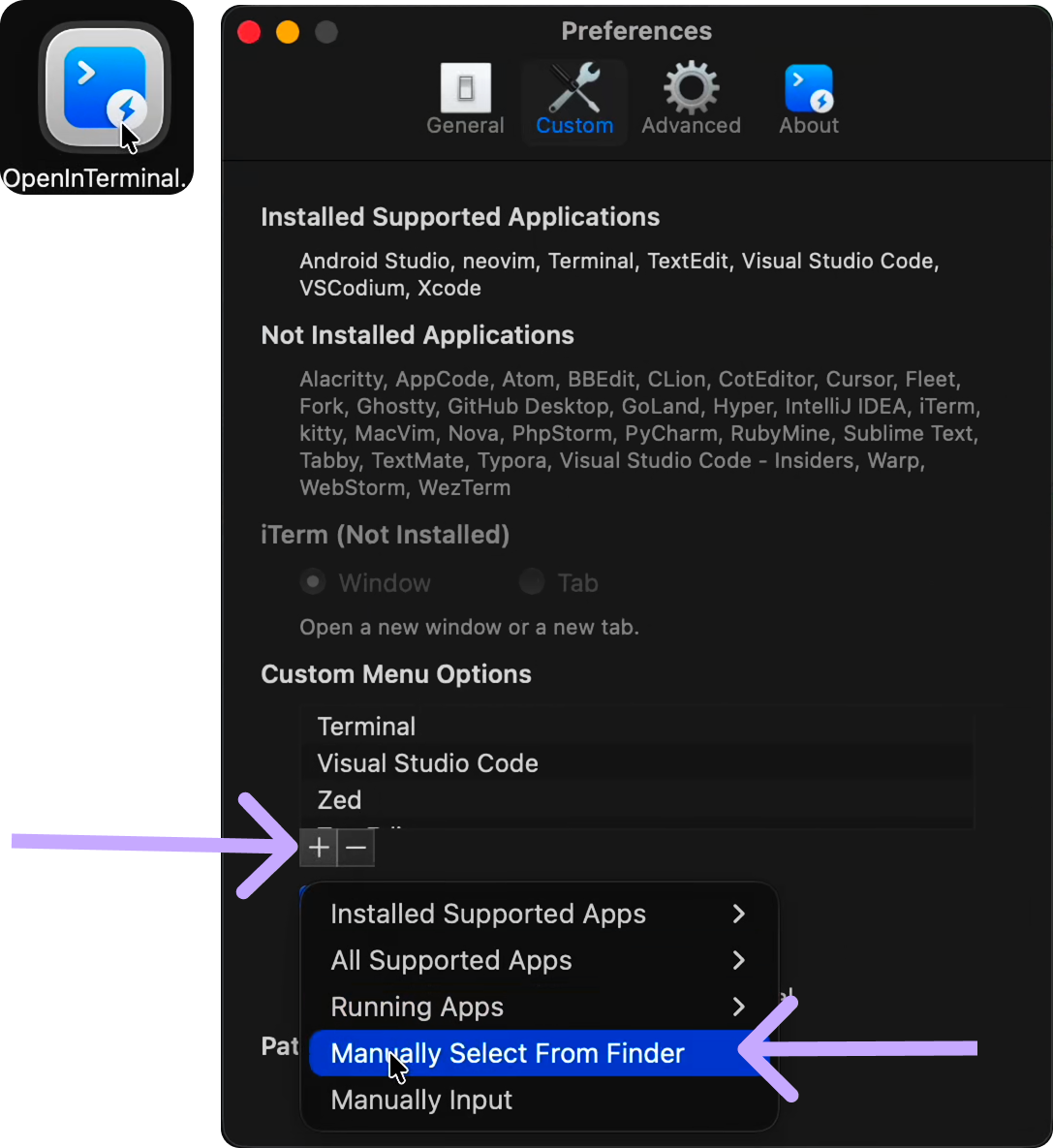
Open OpenInTerminal → Preferences → Custom. Under Custom Menu Options, click + and choose Manually Select From Finder.
2. Select New File.app
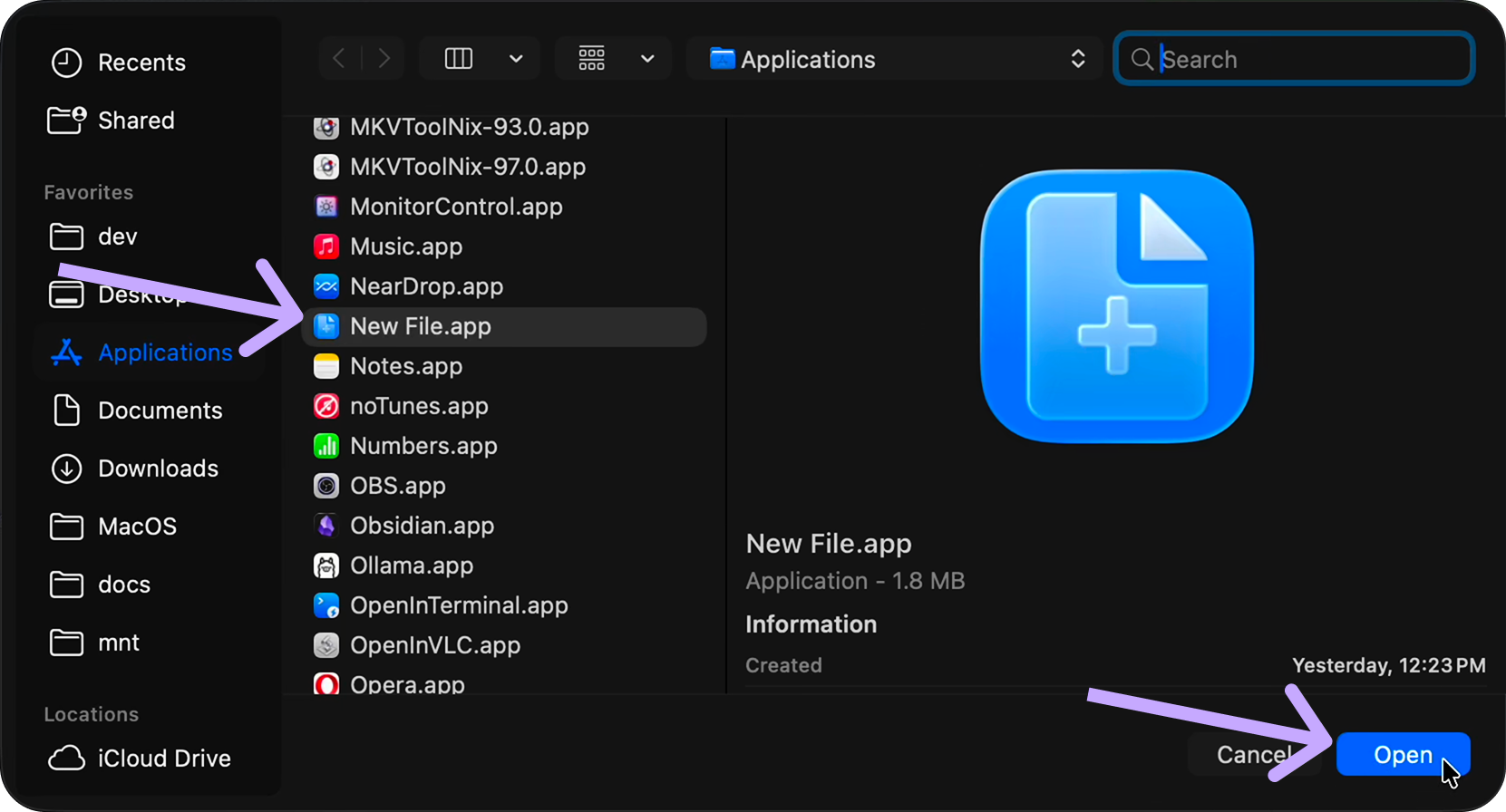
In the file picker, go to Applications, select New File.app, and click Open.
3. Set it as an Editor and confirm
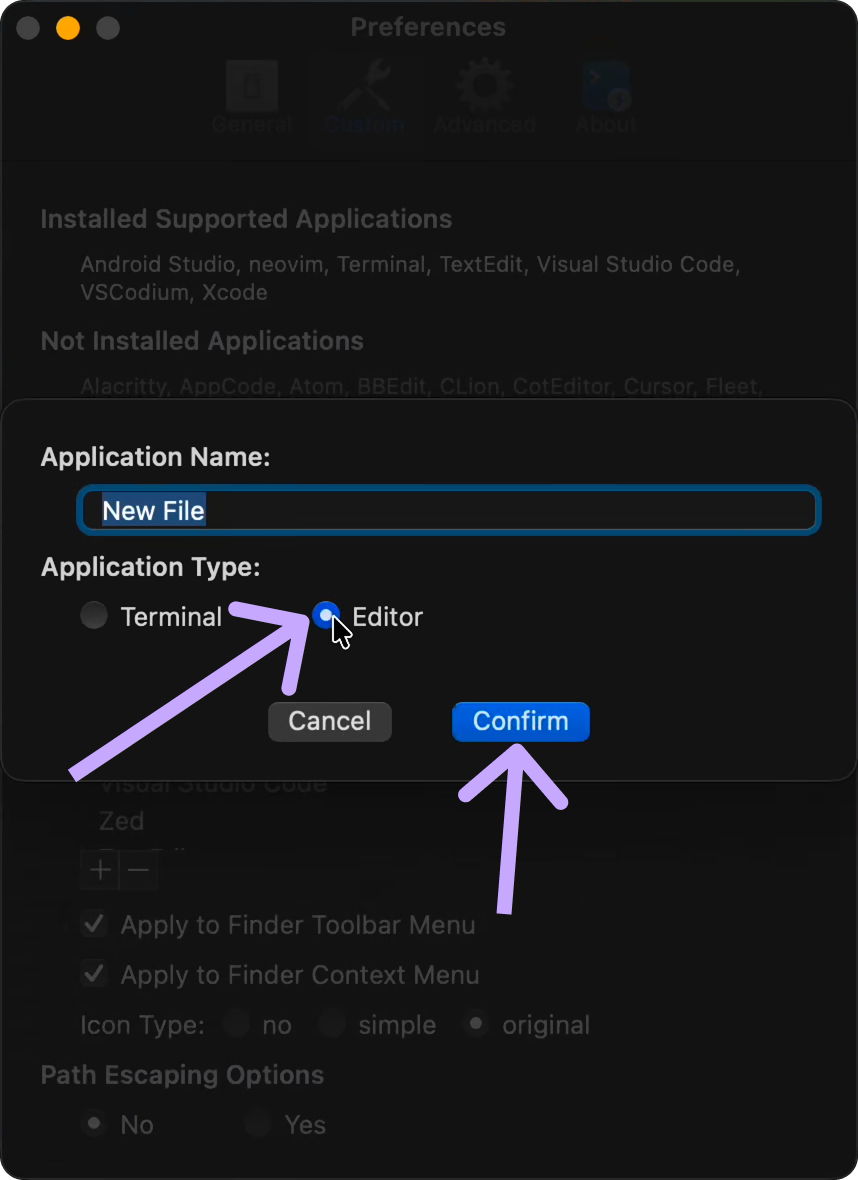
Leave the Application Name as New File, set Application Type to Editor, and click Confirm. Make sure Apply to Finder Context Menu (and/or Apply to Finder Toolbar Menu) is checked.
4. MANDATORY STEP
If you made it this far, you have the patience of a saint and, apparently, no repo star yet. Fix that. Star the repo NOW!! 🚨🚨
New File now appears in Finder's right-click menu — see Usage.
Quickest way — run the release build script with --skip-zip to get the built app directly at dist/New File.app:
./scripts/build-release.sh --skip-zipMove it to /Applications and follow steps 3–7 from Install above.
(Maintainers cutting an actual GitHub Release should omit --skip-zip — that produces dist/New File.app.zip, ready to attach as a release asset.)
Alternatively, build via Xcode directly:
- Open
newfile.xcodeprojin Xcode and build (Product → Build, or Cmd+B). - Locate the built app: Product → Show Build Folder in Finder, then open the
Debug(orRelease) folder inside it — you'll findNew File.app. - Follow steps 2–7 from Install above.
Right-click anywhere on the Desktop, in an empty area of a Finder window, or directly on a file or folder, then choose New File from the context menu.
./scripts/cut-release.sh v1.0.1 "Fix Desktop reveal bug"Builds a fresh unsigned release, tags it, pushes the tag, and publishes a GitHub Release with the zip attached — requires a clean working tree and the gh CLI authenticated.
- App Sandbox is intentionally disabled. A sandboxed app only gets a temporary, URL-scoped write permission for the exact path it's opened with — enough to write into a selected folder, but not into a selected file's parent directory. Since this app needs to create files anywhere the user can right-click, it can't run sandboxed.