Streamline your frontend i18n workflow with Vue I18n & React i18next support, auto-completion, inline hints, and Excel import/export.





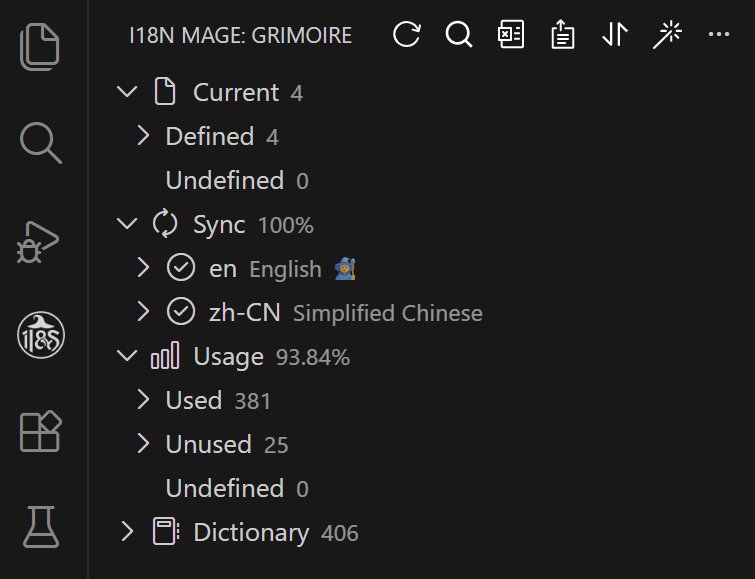
- Displays an overview panel via the VS Code sidebar.
- Includes statistics (total keys, missing translations, etc.).
- Sync status per language file.
- Tree-structured view of translation entries.
- Functional buttons: Search, Export, Import, Sort, Fix.
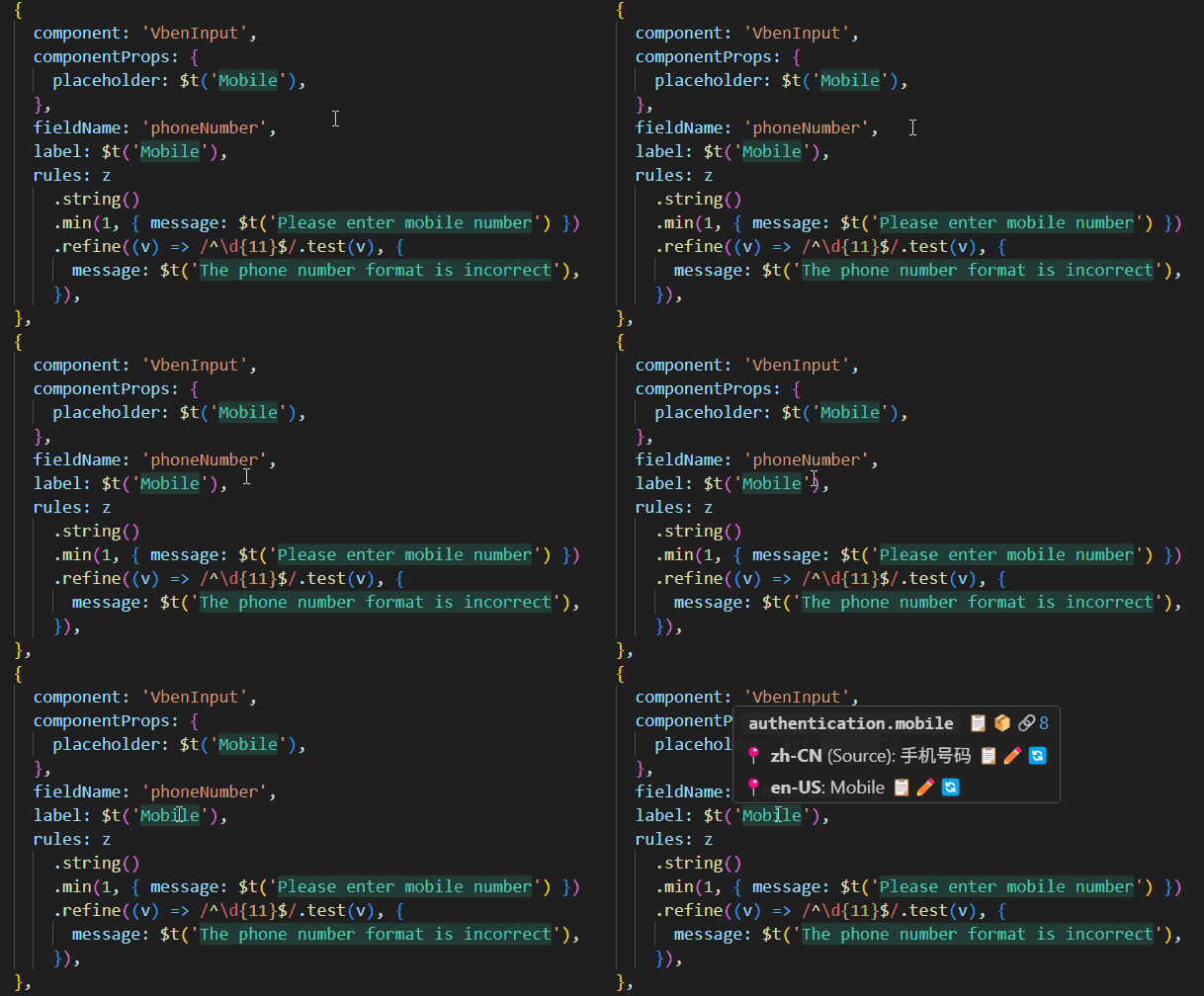
- Show actual translation inline where
t()is used. - Supports custom styles (color, max length, etc.).
- Toggleable via shortcuts.
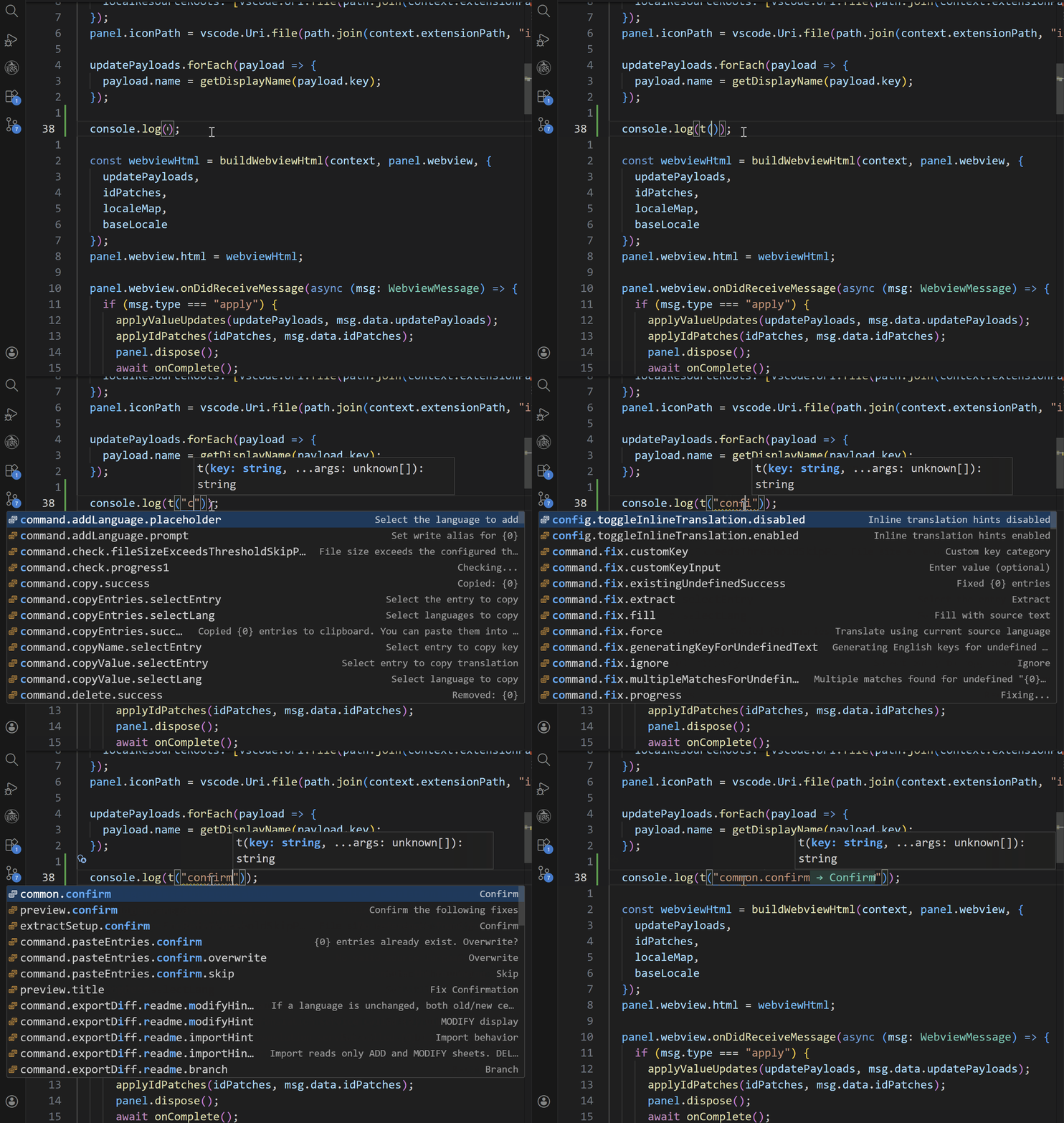
- Automatically suggests existing translation entries when typing internationalization functions (e.g.,
t("...")) - Supports candidate filtering by key, value, or bidirectional matching
- Auto-fills translation keys to boost multilingual development efficiency
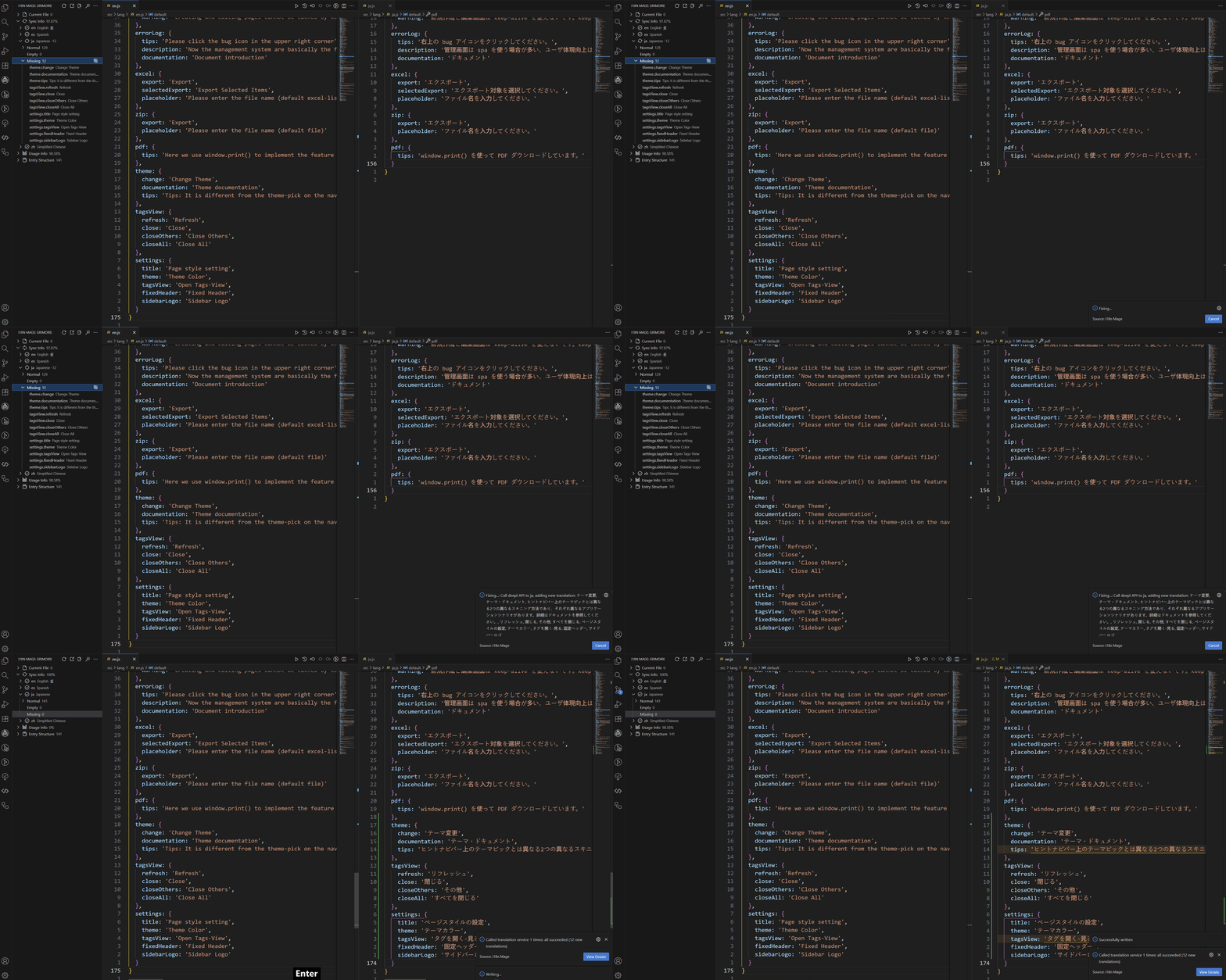
- Integrates global providers (DeepL, Google, OpenAI/ChatGPT) and optional regional providers (DeepSeek, Baidu, Tencent, Youdao)
- Fill missing translations automatically with preview and manual review
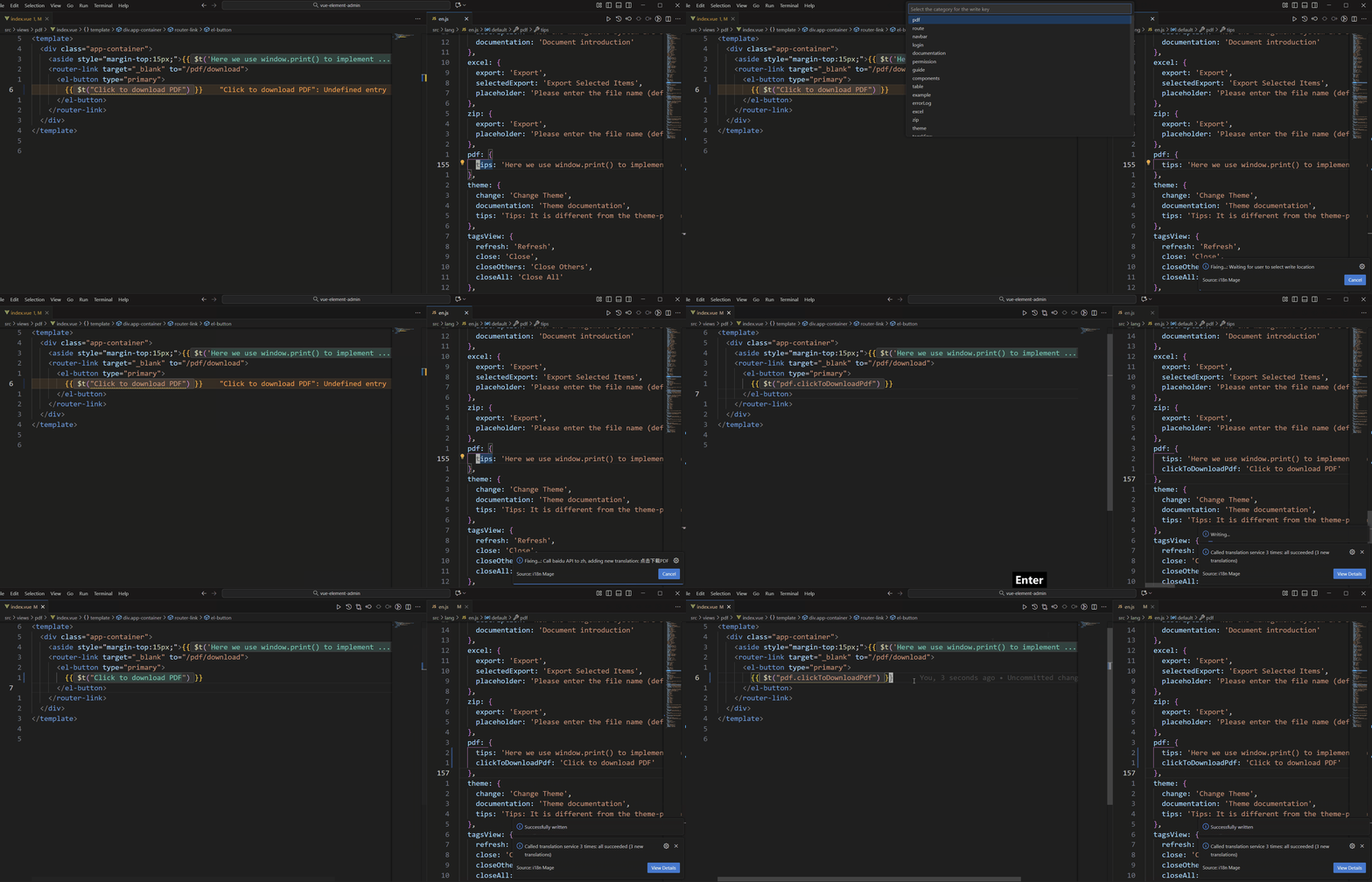
- Detect undefined entries
- Match existing entries or extract text into new entries
- Support customizable key naming strategies
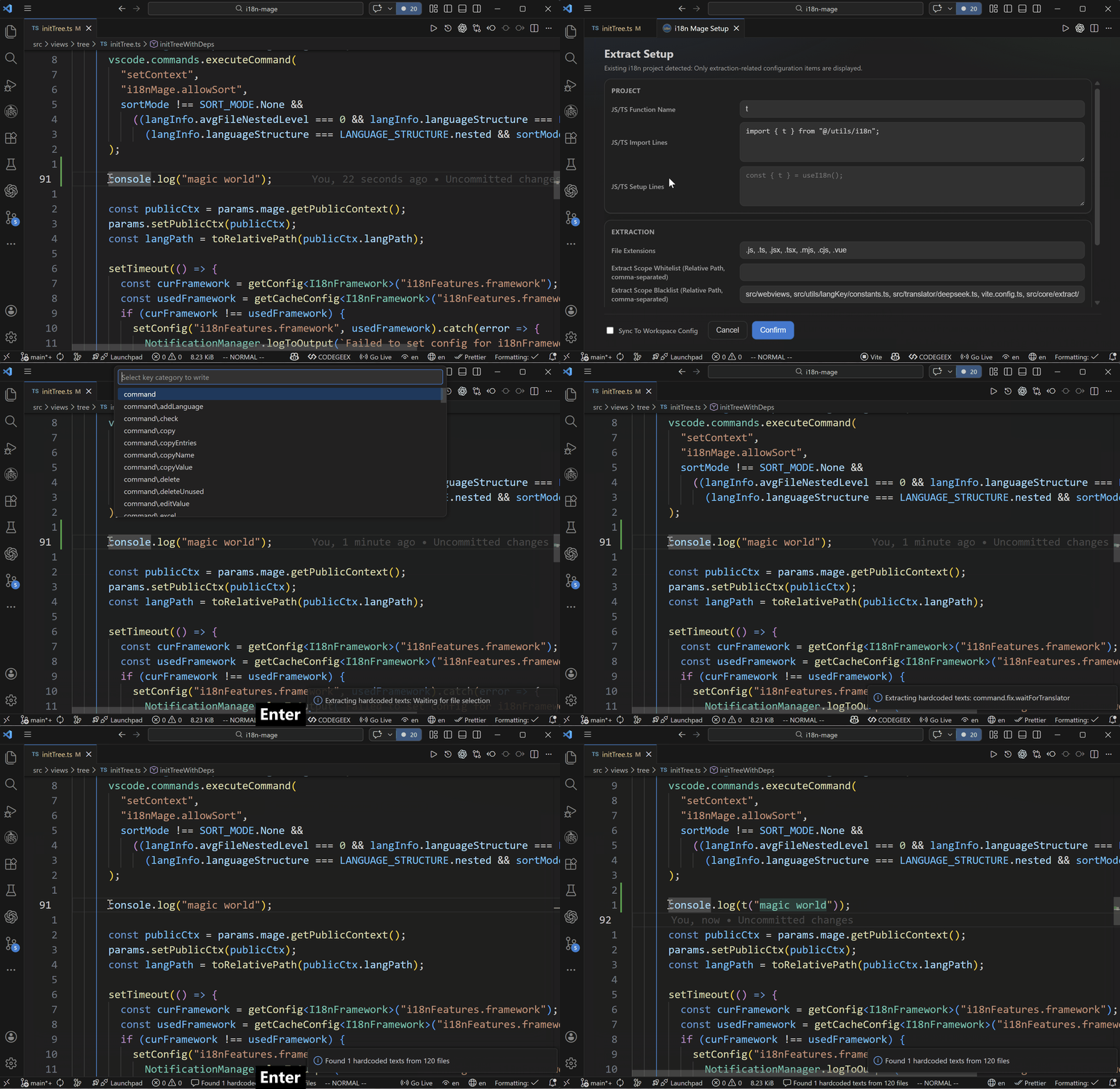
- Scan hardcoded texts and batch-extract them into i18n keys
- Replace source code and write back into language files
- Preview before apply, suitable for migrating legacy projects
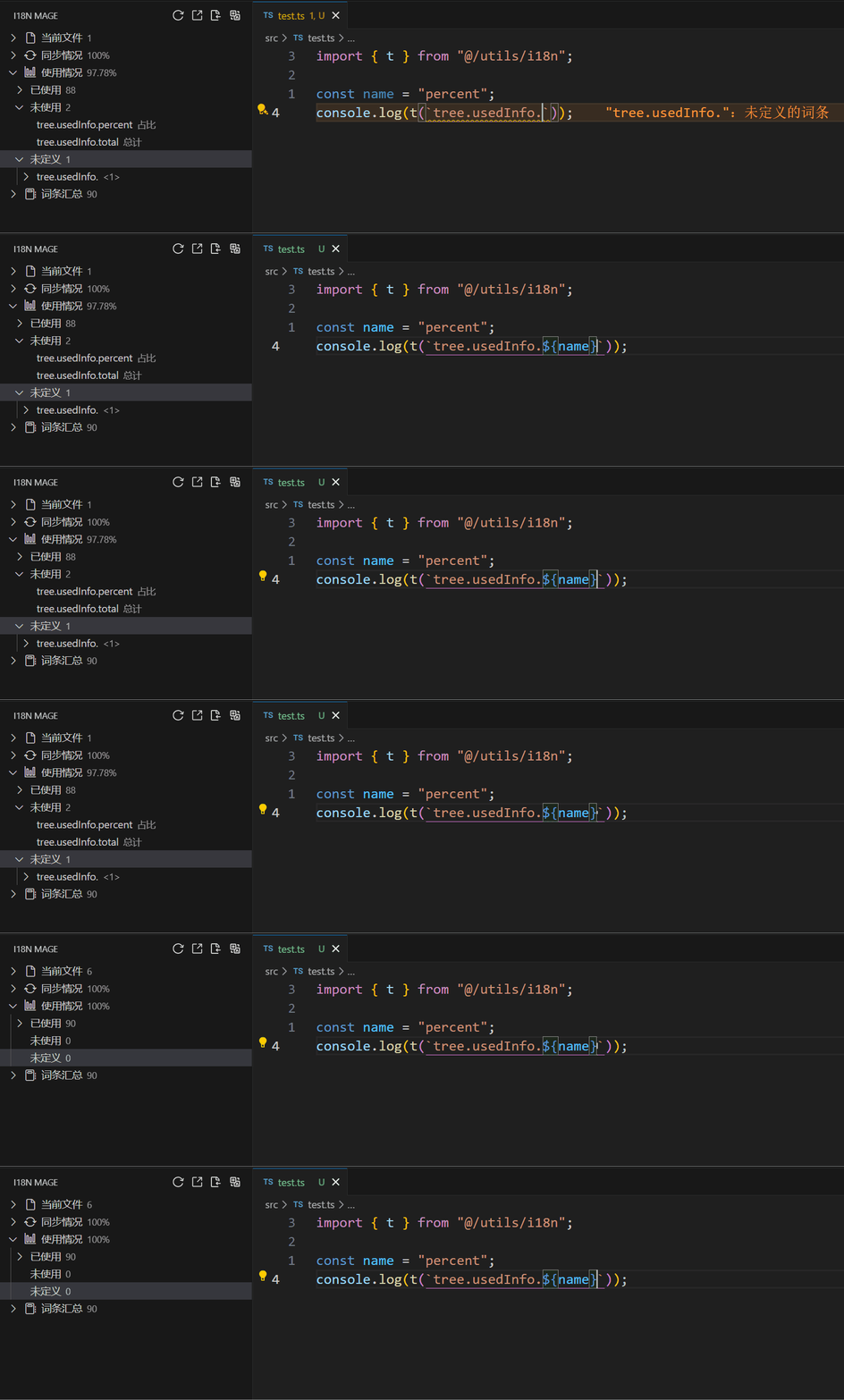
- Analyzes usage of all keys.
- Pattern matching for dynamic keys.
- Delete or mark as used manually.
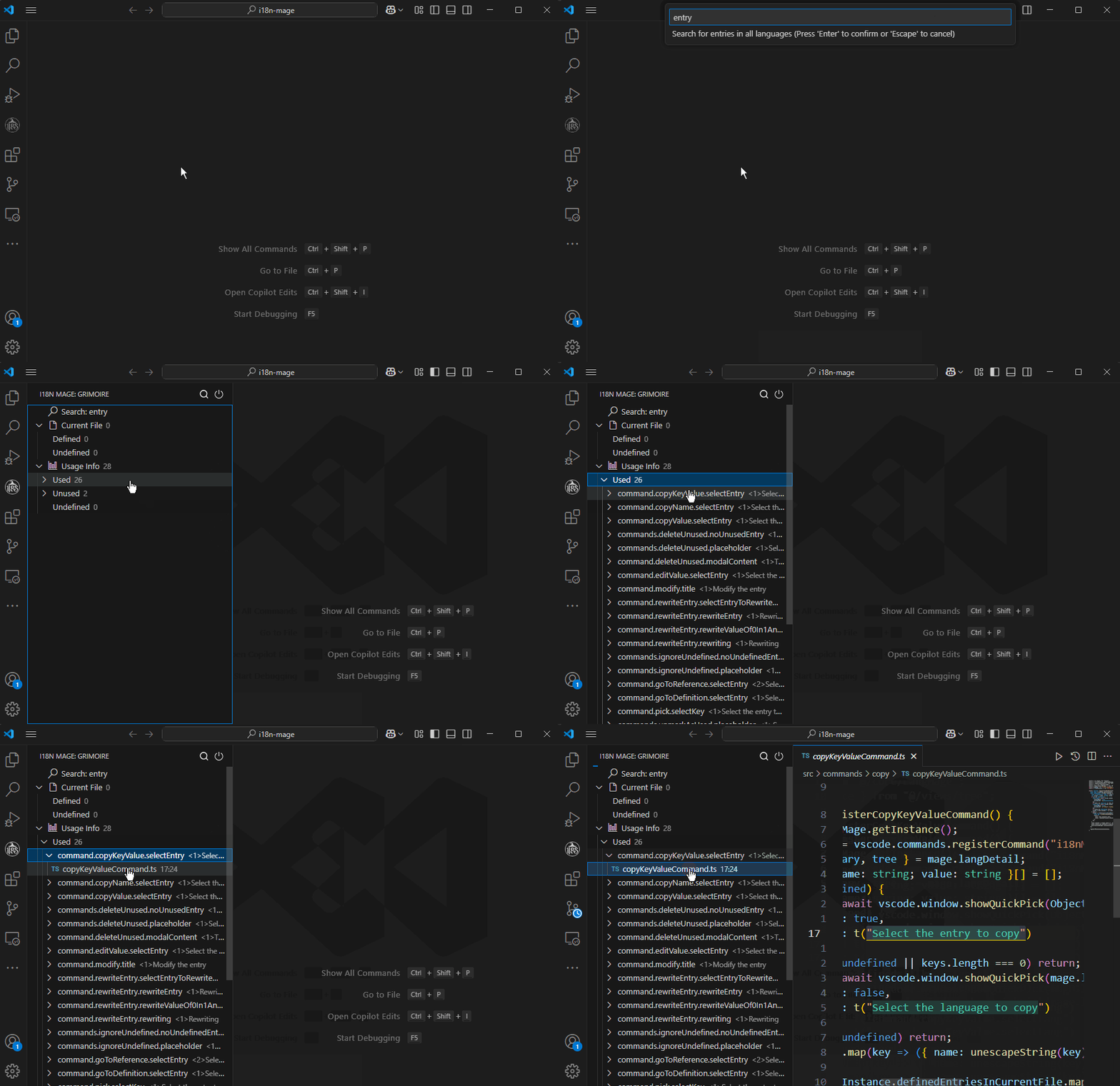
- Search across languages to locate target entries quickly
- Support whole-word and case-sensitive search
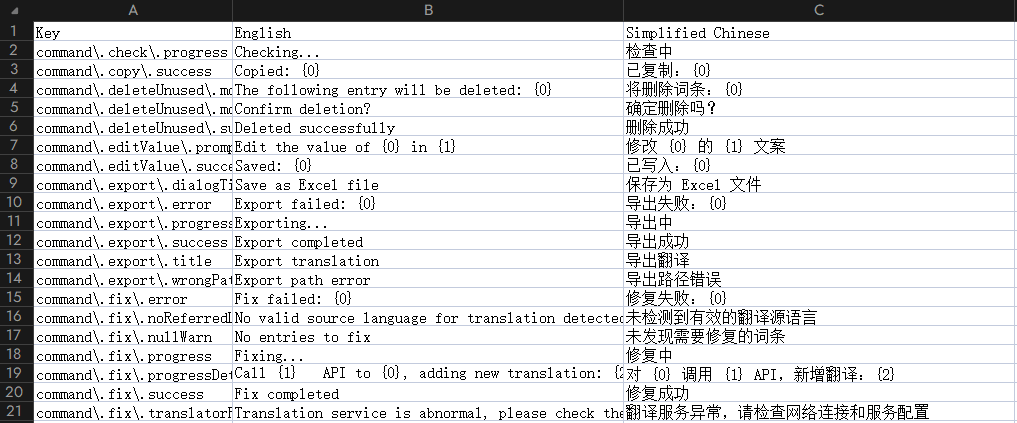
- Export entries to Excel for translation teams
- Import translations from Excel and write back automatically
- Export git-based diff sheets (ADD/MODIFY/DELETE)
- Import diff sheets back into project
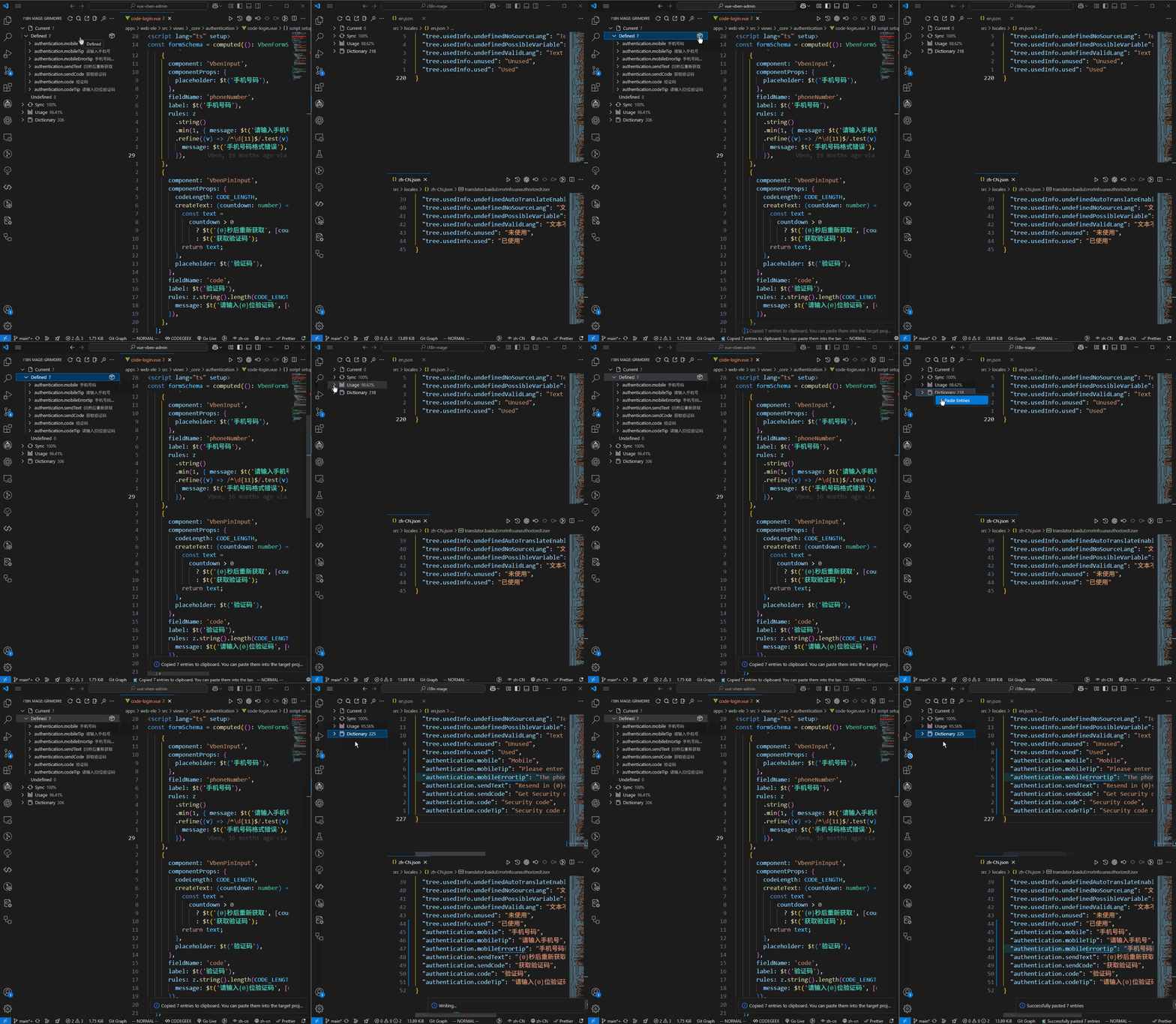
- Copy entries by file or prefix into clipboard
- Paste copied entries into target projects for fast migration
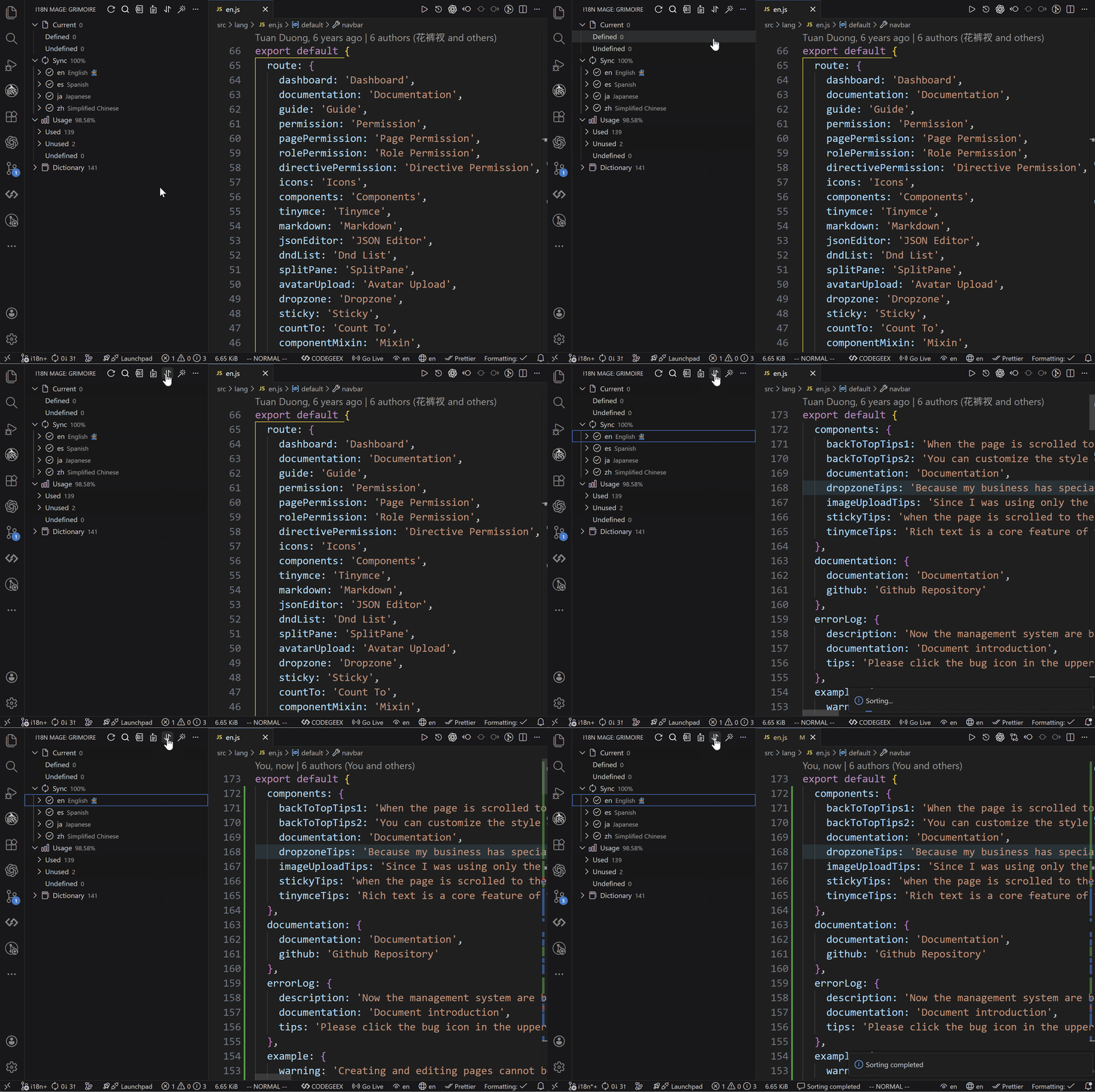
- Sort by key name or first occurrence position
- Reduce noisy diffs after fixes
Option 1: Install from VS Code
- Open VS Code and go to Extensions (
Ctrl+Shift+X/Cmd+Shift+X) - Search for
i18n Mage - Click Install
Option 2: Command Line Installation
ext install jensen-wen.i18n-mageOption 3: Manual Installation
Visit the Marketplace Page to install.
- The extension automatically scans your project's i18n directory after activation
- Click the i18n Mage icon in the sidebar to open the translation panel
- Right-click in the panel to manually set translation directory if not auto-detected
- Right-click to configure display and source languages
- Manually assign languages to files if automatic detection fails
- Supported services: DeepL, Google, DeepSeek, Baidu, Tencent
- Configuration path:
Settings → Extensions → i18n Mage → Translation Services
- General settings
- Framework support (e.g. translation function names, interpolation)
- Translation services (API keys, reference language)
- Analysis rules (file scanning, auto detection)
- Write rules (key style, quote style, indentation)
- Inline hint styling
- Workspace-specific settings
All settings are accessible via the VS Code Settings UI or in
.vscode/settings.json.
git clone https://github.com/baimohui/i18n-mage.git
cd i18n-mage
npm install
# f5 to debug
npm run check
npm run build
Feel free to submit issues or PRs!
MIT License © 2024-2025 Jensen Wen