


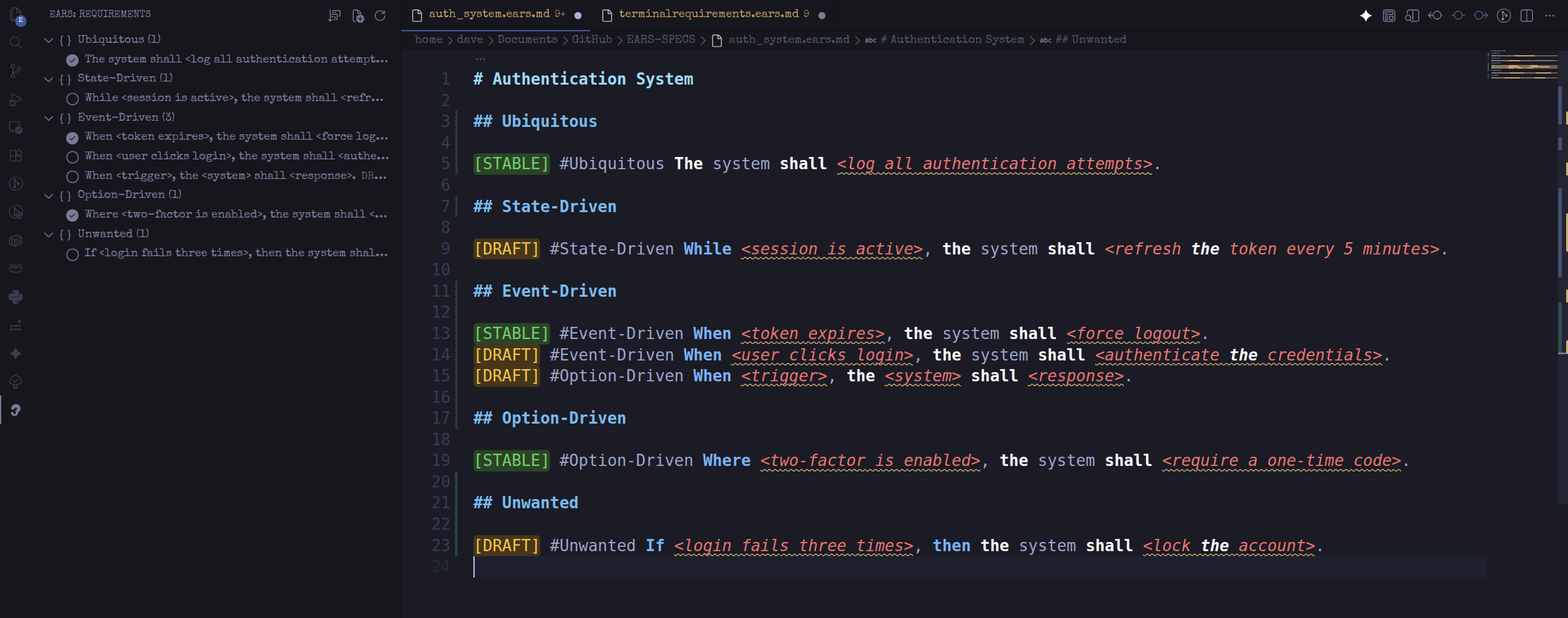
A VS Code extension for authoring EARS requirements — clear, testable specifications written in the Easy Approach to Requirements Syntax. It provides syntax highlighting, snippets for every EARS pattern, and a sidebar that classifies and organises requirements automatically.
The aim is consistent, reviewable specifications with zero manual bookkeeping: write a requirement, and the extension recognises its type, colours its structure, and files it in the right place.
Install once from the Marketplace; it updates automatically thereafter. Supported on Windows, macOS and Linux.
From inside VS Code
- Open the Extensions view — Ctrl+Shift+X (Cmd+Shift+X on macOS).
- Search for EARS Specs by davidcockson (the 👂 icon).
- Select Install.
From the command line
code --install-extension davidcockson.ears-specsVSCodium, Cursor and Gitpod resolve the same identifier via Open VSX — see Other ways to install.
Create a file ending in .ears.md, open it, and enter:
[DRAFT] When <user logs in>, the system shall <check the password>.
The keywords are highlighted and the 👂 EARS icon appears in the Activity Bar.
Type a prefix and press Tab to expand the pattern; press Tab again to move between the <placeholders>.
| Prefix | Expands to | EARS pattern |
|---|---|---|
e-ubiq |
The <system> shall <response> |
Ubiquitous (always active) |
e-state |
While <state>, the <system> shall <response> |
State-driven |
e-event |
When <trigger>, the <system> shall <response> |
Event-driven |
e-opt |
Where <feature>, the <system> shall <response> |
Option-driven |
e-err |
If <problem>, then the <system> shall <response> |
Unwanted behaviour |
e-draft |
[DRAFT] |
Mark as under discussion |
e-stable |
[STABLE] |
Mark as agreed |
If Tab does not expand, press Ctrl+Space to select the snippet from the list.
Open the EARS view from the Activity Bar (👂). It lists every requirement in the active file, grouped by EARS pattern. A filled marker indicates STABLE (agreed); a hollow marker indicates DRAFT (under discussion). Select any entry to jump to its line.
Open the Command Palette — Ctrl+Shift+P (Cmd+Shift+P on macOS) — and run:
| Command | Description |
|---|---|
| EARS: Organize Document | Rewrites the file into one section per EARS pattern, STABLE before DRAFT. Run it once a draft is complete. |
| EARS: New Spec File | Scaffolds a templated .ears.md. Requires an open folder (File → Open Folder). |
| EARS: Refresh Outline | Rebuilds the sidebar if it falls out of sync. |
EARS — the Easy Approach to Requirements Syntax — constrains every requirement to one of five sentence patterns, removing the ambiguity of free-form prose. Each pattern is identified by its leading keyword:
| # | Pattern | Template | Example |
|---|---|---|---|
| 1 | Ubiquitous | The <system> shall <response> |
The system shall log all logins. |
| 2 | State-driven | While <state>, the <system> shall <response> |
While the session is active, the system shall refresh the token. |
| 3 | Event-driven | When <trigger>, the <system> shall <response> |
When the user clicks login, the system shall check the password. |
| 4 | Option-driven | Where <feature>, the <system> shall <response> |
Where two-factor is enabled, the system shall require a code. |
| 5 | Unwanted behaviour | If <problem>, then the <system> shall <response> |
If login fails three times, then the system shall lock the account. |
- Scoped to
.ears.md— features activate only for these files, so they never interfere with your other Markdown. - Syntax highlighting — keywords (When / While / Where / If / then), the backbone (The / shall),
<placeholders>, and[DRAFT]/[STABLE]badges are coloured using VS Code decorations. No additional extension required. - Automatic classification — each requirement's pattern is inferred from its leading keyword, so the sidebar groups everything with no manual tagging.
- One-command organisation — Organize Document rewrites the file into ordered sections by pattern and status.
- Status tracking —
[DRAFT]and[STABLE]markers record whether a requirement is still under discussion or agreed.
The result is a spec-driven workflow: draft freely, and the extension keeps requirements classified, consistent and reviewable, with agreed and open items visible at a glance.
The Marketplace install above suits most users. These are alternatives.
These editors resolve extensions from the Open VSX Registry. Search for EARS Specs in the Extensions view, or run:
code --install-extension davidcockson.ears-specs- Download the latest
.vsixfrom the Releases page. - In VS Code: Extensions view →
...menu → Install from VSIX… → select the file.
macOS: if
codereportscommand not found, run Shell Command: Install 'code' command in PATH from the Command Palette, then retry.
git clone https://github.com/davidcockson-compliance/EARS-SPECS.git
cd EARS-SPECS
code .          # press F5 to launch an Extension Development Host
Package an installable build:
npm install -g @vscode/vsce
vsce package    # produces ears-specs-x.y.z.vsix
Pushing a git tag such as v0.2.2 builds the .vsix and publishes a GitHub Release automatically (see .github/workflows/release.yml).
MIT