The Hydrolix data source plugin integrates Hydrolix with Grafana, enabling seamless querying, analysis, and visualization of Hydrolix data.
To install the Hydrolix data source plugin:
- Open the Grafana Plugin Catalog.
- Search for Hydrolix Data Source.
- Select the plugin and click Install Plugin.
After installation:
- In Grafana, go to Connections > Data Sources > Add new data source.
- Select Hydrolix from the list.
For more details about installation, see Grafana’s Plugin management documentation.
You can configure the Hydrolix data source directly within Grafana or via configuration files.
Following is the list of Hydrolix configuration options.
- Name - The name used to reference this data source in panels and queries.
- Default - Toggle to set this Hydrolix data source as the default in panels and visualizations.
Server section:
- Server address - The IP address or hostname of your Hydrolix instance.
- Server port - The port on which your Hydrolix instance is running.
- Use default - Toggle to use the default port instead of specifying a custom one.
- Protocol - The communication protocol used: Native or HTTP.
- Secure connection - Toggle to enable a secure connection.
- HTTP URL path (optional) - Additional URL path for HTTP requests.
TLS / SSL Settings section:
- Skip TLS verify - Toggle to bypass TLS certificate verification. Not recommended, unless absolutely necessary for testing.
Credentials section:
- Credentials Type - Credentials type for connecting to your Hydrolix instance: User Account or Service Account.
- Token - Service account token.
- Username, Password - Service account credentials.
Additional Settings section:
- Default database (optional) - Used when no database is explicitly included in the query.
- Default round (optional) - Used when a query does not specify a round value. Aligns
$fromand$toto the nearest multiple of this value. For more details, see Round timestamps. - Ad hoc filter table variable name (optional) - Variable defines which table to use for retrieving ad hoc filter columns and values.
- Ad hoc filter default time range (optional) - Default time range for time filtering when dashboard time range is not available
- Ad hoc filter values query condition variable name (optional) - Name of a dashboard variable that defines query condition to filter ad hoc filter values
- Dial timeout (optional) - Connection timeout in seconds.
- Query timeout (optional) - Read timeout in seconds.
Query Settings subsection:
You can configure Hydrolix query settings that will be sent
with each query from this data source, wrapped as CustomSetting values. Note that only a subset of settings is
supported in this way.
To add a setting, select it from the dropdown list and provide a corresponding value in the field that appears.
You can include any built-in Grafana variables or dashboard template variables in the setting values. Keep in mind that some variables may not be available during interpolation - their availability depends on the query source. If a variable is not defined in the current context, it will not be interpolated and will remain as-is.
The plugin also supports several synthetic variables specific to query settings:
${__hydrolix.raw_query}- Represents the raw query text before any interpolation is applied.${__hydrolix.query_source}- Represents the query source, derived from theDataQueryRequest.appfield. This is useful to distinguish whether a query originated from Explore or elsewhere.
Error Exposure subsection:
The Error Exposure feature allows you to expose query errors to Grafana dashboard variables, enabling error tracking, monitoring, and custom error handling within your dashboards.
- Enable Error Exposure - Toggle to enable exposing query errors to dashboard variables.
- Variable Name - Name of the dashboard variable where error information will be stored (default:
hdx_query_errors). - Max Error Count - Maximum number of errors to store in the variable (default:
5). - Error TTL (seconds) - Time to live for stored errors in seconds. Errors older than this value will be automatically
removed (default:
300). - Solution Templates - Download the error solution templates in JSON format
When enabled, query errors are automatically captured and stored in the specified dashboard variable, allowing you to display error messages in error panel.
To provision the Hydrolix data source using Grafana’s provisioning system, define it in a YAML configuration file.
Below are some provisioning examples.
apiVersion: 1
datasources:
  - name: "Hydrolix"
    type: "hydrolix-hydrolix-datasource"
    jsonData:
      host: localhost
      port: 443
      protocol: http
      secure: true
      username: username
      path: /query
    secureJsonData:
password: passwordapiVersion: 1
datasources:
- name: "Hydrolix"
type: "hydrolix-hydrolix-datasource"
jsonData:
host: localhost
port: 9440
protocol: native
secure: true
username: username
secureJsonData:
password: passwordapiVersion: 1
datasources:
- name: "Hydrolix"
type: "hydrolix-hydrolix-datasource"
jsonData:
host: localhost
port: 443
protocol: http
secure: true
username: username
path: /query
defaultDatabase: database
defaultRound: 60s
adHocTableVariable: table
secureJsonData:
password: passwordapiVersion: 1
datasources:
- name: "Hydrolix"
type: "hydrolix-hydrolix-datasource"
jsonData:
host: localhost
port: 443
protocol: http
secure: true
username: username
path: /query
exposeErrors:
enables: true
variableName: hdx_query_errors
maxCount: 5
ttl: 300
secureJsonData:
password: passwordFor more details about provisioning, see Grafana's Provisioning documentation.
The query editor in Grafana enables powerful SQL querying with convenient syntax enhancements through macros and templates.
The editor provides extensive SQL capabilities, featuring:
- Intelligent autocompletion for databases, tables, columns, and SQL syntax.
- Template variable and macro support.
- Code formatting.
Cmd/Ctrl + Return- Run the query.
To simplify syntax and to allow for dynamic parts, like date range filters, the query can contain macros.
| Macro | Description | Output example |
|---|---|---|
$__dateFilter(column) |
Generates a condition to filter data (using the provided column) based on the panel's date range | date >= toDate('2022-10-21') AND date <= toDate('2022-10-23') |
$__timeFilter([column]) |
Generates a condition to filter data based on the panel's time range in seconds. Accepts an optional column name. If no column is provided, the primary key is used automatically. | time >= toDateTime(1415792726) AND time <= toDateTime(1447328726) |
$__timeFilter_ms([column]) |
Generates a condition to filter data based on the panel's time range in milliseconds. Accepts an optional column name. If no column is provided, the primary key is used automatically. | time >= fromUnixTimestamp64Milli(1415792726123) AND time <= fromUnixTimestamp64Milli(1447328726456) |
$__dateTimeFilter(dateColumn, timeColumn) |
Combines $__dateFilter() and $__timeFilter() for filtering with separate date and time columns |
$__dateFilter(dateColumn) AND $__timeFilter(timeColumn) |
$__adHocFilter |
Replaced with a condition to filter data based on the applied ad hoc filters | statusCode = '200' |
$__fromTime |
Replaced with the panel's start time, cast as DateTime |
toDateTime(1415792726) |
$__toTime |
Replaced with the panel's end time, cast as DateTime |
toDateTime(1447328726) |
$__fromTime_ms |
Replaced with the panel's start time, cast as DateTime64(3) (millisecond precision) |
fromUnixTimestamp64Milli(1415792726123) |
$__toTime_ms |
Replaced with the panel's end time, cast as DateTime64(3) (millisecond precision) |
fromUnixTimestamp64Milli(1447328726456) |
$__interval_s |
Replaced with the interval in seconds | 20 |
$__timeInterval([column]) |
Calculates intervals based on panel width, useful for grouping data in seconds. Accepts an optional column name. If no column is provided, the primary key is used automatically. | toStartOfInterval(toDateTime(column), INTERVAL 20 second) |
$__timeInterval_ms([column]) |
Calculates intervals based on panel width, useful for grouping data in milliseconds. Accepts an optional column name. If no column is provided, the primary key is used automatically. | toStartOfInterval(toDateTime64(column, 3), INTERVAL 20 millisecond) |
$__conditionalAll(condition, $templateVar) |
Includes the provided condition only if the template variable does not select all values, defaults to 1=1 otherwise |
condition or 1=1 |
Sometimes you may need to include macro syntax in your query as literal text without it being evaluated. To escape a macro, prefix it with an additional dollar sign ($).
Examples:
$$__timeFilter(timestamp)→ Outputs$__timeFilter(timestamp)as literal text$$__adHocFilter()→ Outputs$__adHocFilter()as literal text
Multiple escaping:
You can escape multiple times by adding more dollar signs:
$$$__timeFilter(timestamp)→ Outputs$$__timeFilter(timestamp)as literal text$$$$__timeFilter(timestamp)→ Outputs$$$__timeFilter(timestamp)as literal text
Each additional $ at the beginning removes one level of escaping. Only the first $ is removed, and the rest of the macro text remains unchanged.
Use cases:
- Documenting macro usage in comments
- Using macro in dashboard variables queries where inner queries should not be interpolated
Below is an example of a query with the $__timeFilter macro:
SELECT $__timeInterval(log_time) AS time, avg(cpu_usage) AS value
FROM logs
WHERE $__timeFilter()
GROUP BY time
ORDER BY time
Ad hoc filters allow flexible, column-value filtering dynamically applied across queries. These filters are injected into
queries via the $__adHocFilter macro, which must be explicitly included in the WHERE clause:
SELECT $__timeInterval(log_time) AS time, avg(cpu_usage) AS value
FROM logs
WHERE $__timeFilter() AND $__adHocFilter()
GROUP BY time
ORDER BY time
The plugin ensures filters are applied only when valid for the selected table.
To enable ad hoc filters, both the data source and the dashboard must be configured properly:
-
In the data source settings (under Advanced Settings):
- Ad hoc filter table variable name: the name of a dashboard variable that defines the table used to retrieve column names and their values for ad hoc filters.
- Ad hoc filter default time range: a default time range to use when the dashboard time range is unavailable.
-
In the target dashboard, create a variables using the exact name defined in the data source settings A variable for the table name
Note: Ad hoc filters will not work unless both the data source and the dashboard are configured correctly. Be sure to match variable names precisely.
This plugin allows limiting ad hoc filter values based on a specified condition. For example, if a dashboard only shows data from hosts with commercial domains, you can restrict the filter values using a condition like: host like '%.com'
To apply the limit ad hoc filters, both the data source and the dashboard must be configured properly:
-
In the data source settings (under Advanced Settings):
- Ad hoc filter values query condition variable name: the name of a dashboard variable that defines query condition to filter ad hoc filter values.
-
In the target dashboard, create a const variables using the exact name defined in the data source settings Ad hoc filter values query condition variable name and add condition as a value (e.g.
host like '%.com')
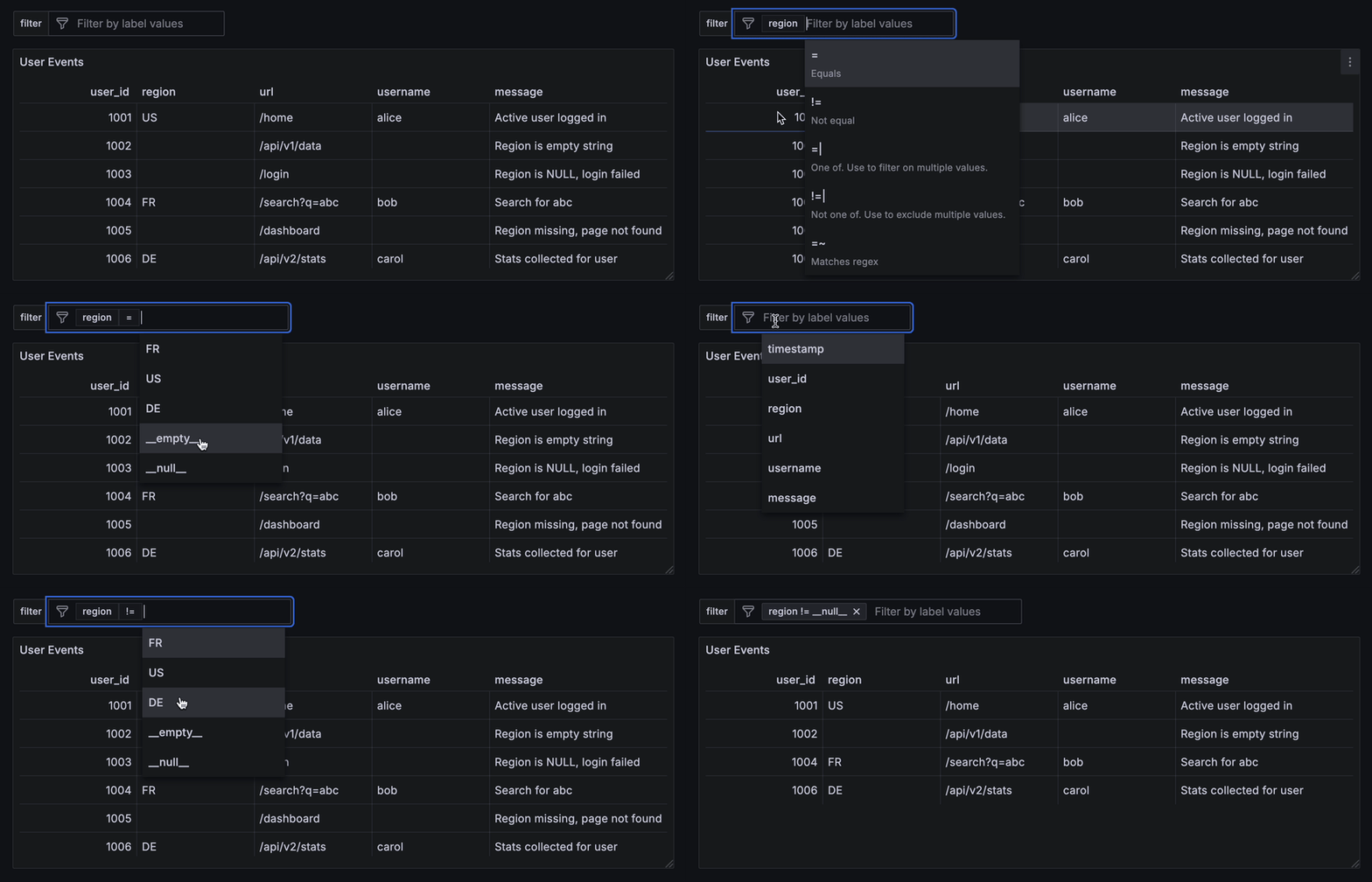
Ad hoc filters support two synthetic values to help identify and query rows with missing or blank data:
__null__: matches rows where the column value isNULL.__empty__: matches rows where the column value is an empty string.
These synthetic values appear in the ad hoc filter suggestions only if the underlying data contains NULL or empty
strings for the selected column during the current dashboard time range.
If the data contains literal values such as __null__ or __empty__, those will also be matched by the corresponding
filters.
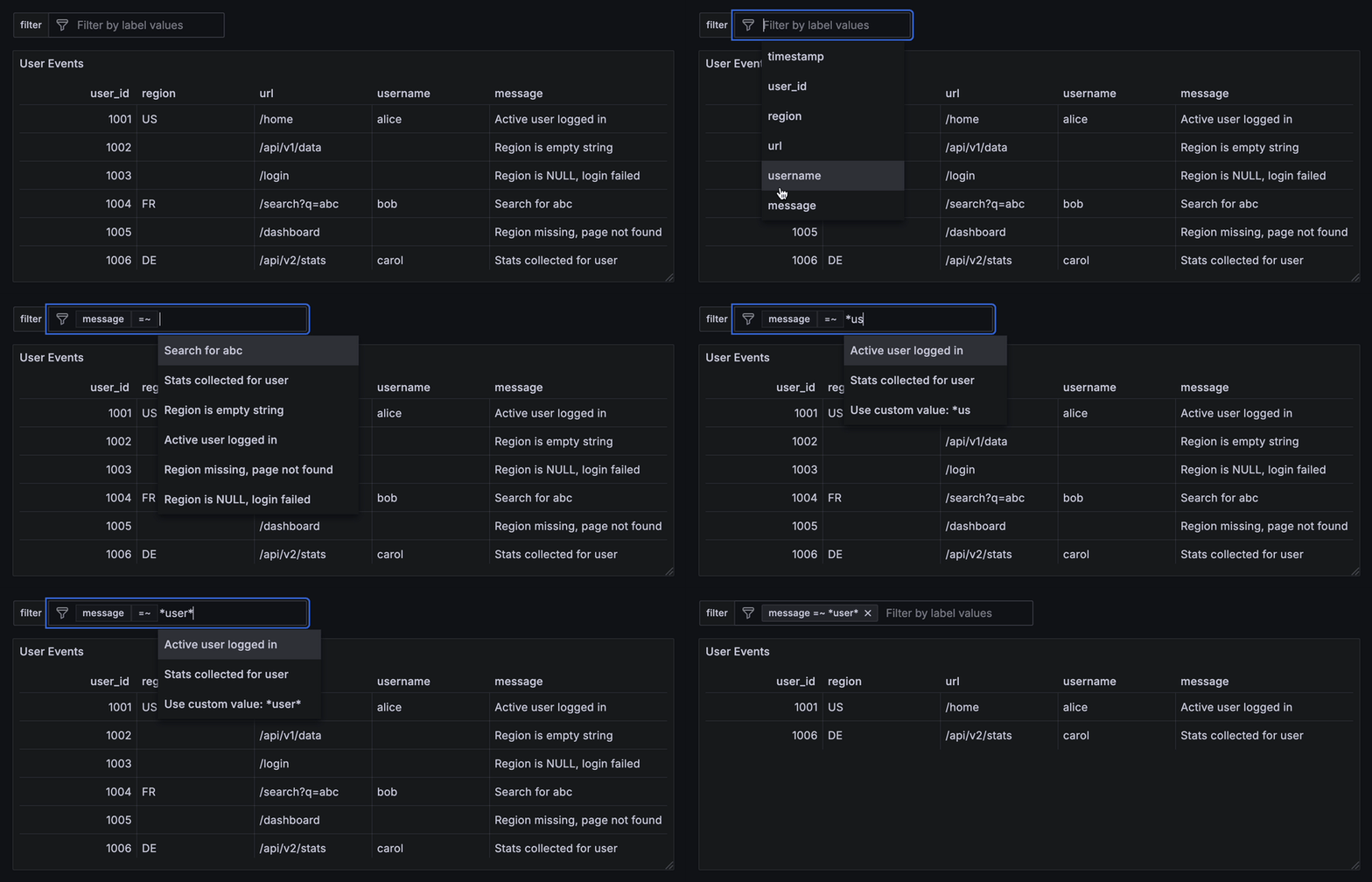
Ad hoc filters support wildcard filtering using the =~ and !~ operators. These operators allow matching or excluding
values based on simple patterns that include the * wildcard character. Full regular expressions are not supported.
The * symbol matches any sequence of characters, including an empty one. For example, *user* will match any value
that contains the substring user, regardless of what comes before or after.
To match a literal asterisk (*), escape it with a backslash (\*). For example, to search for the exact string
*debug*, enter: \*debug\*.
To apply a wildcard filter:
- On the dashboard, click inside the filter field.
- Select the column you want to filter, such as
message. - Choose the operator
=~or!~. - Type your full wildcard pattern, for example
*user*. - Do not select any of the suggested values while typing.
- As you type, an option appears at the bottom of the suggestion list:
Use custom value: *user*. - Click this option to apply the filter.
To control how time ranges are aligned, $from and $to timestamps can be rounded to the nearest multiple of the round
value, set in the query editor or in the data source settings.
When a round value is set in the query editor, it takes precedence and is always used. If no round is set in the query editor,
the data source falls back to the default round, if it is configured and non-zero. If neither is set, or if the round value
in the query editor is explicitly set to 0, no rounding is applied and the original timestamps are used as-is.
The supported time units for rounding are: ms (milliseconds), s (seconds), m (minutes), and h (hours).
| Default round | Query round | Effective round | Input timestamp | Rounded timestamp |
|---|---|---|---|---|
5m |
not set | 5m |
10:07:20 |
10:05:00 |
5m |
1m |
1m |
09:02:30 |
09:03:00 |
| not set | not set | not applied | 08:01:23 |
08:01:23 |
5m |
0 |
not applied | 07:45:50 |
07:45:50 |
Hydrolix queries fully support Grafana's template variables, allowing the creation of dynamic and reusable dashboards.
For more details about template variables, see Grafana’s Template variables documentation.