| Angular | @johnmakridis/ngx-daterangepicker |
|---|---|
| >=20.0.0 <21.0.0 | v20.x |
| >=19.0.0 <20.0.0 | v19.x |
| >=18.0.0 <19.0.0 | v18.x |
| >=17.0.0 <18.0.0 | v17.x |
| >=16.0.0 <17.0.0 | v16.x |
| >=15.0.0 <16.0.0 | v15.x |
| >=14.0.0 <15.0.0 | v14.x |
| >=13.0.0 <14.0.0 | v13.x |
| >=12.0.0 <13.0.0 | v12.x |
| >=11.0.0 <12.0.0 | v11.x |
| >=10.0.0 <11.0.0 | v10.x |
Use your preferred package manager
npm install ngx-daterangepicker
yarn add ngx-daterangepicker
ng add ngx-daterangepicker
Please note and install the following peerDependencies if necessary for your setup
"peerDependencies": {
  "@types/jquery": "^3.2.12",
  "jquery": "^3.2.1",
}
Update tsconfig.json file in your project root to allow syntectic default imports
"allowSyntheticDefaultImports": trueAdd JQuery and the custom css stylesheet to angular.json. You can customize the stylesheet as you want.
Latest version does not require Bootstrap. You can also skip this and copy the contents of the css file to your stylesheets for customizations.
{
  "styles": [
    "node_modules/@johnmakridis/ngx-daterangepicker/assets/daterangepicker.css"
  ],
  "scripts": [
    "node_modules/jquery/dist/jquery.min.js"
  ]
}
Import the Daterangepicker module in your application module
import { Daterangepicker } from '@johnmakridis/ngx-daterangepicker';

@NgModule({
    imports: [Daterangepicker]
})
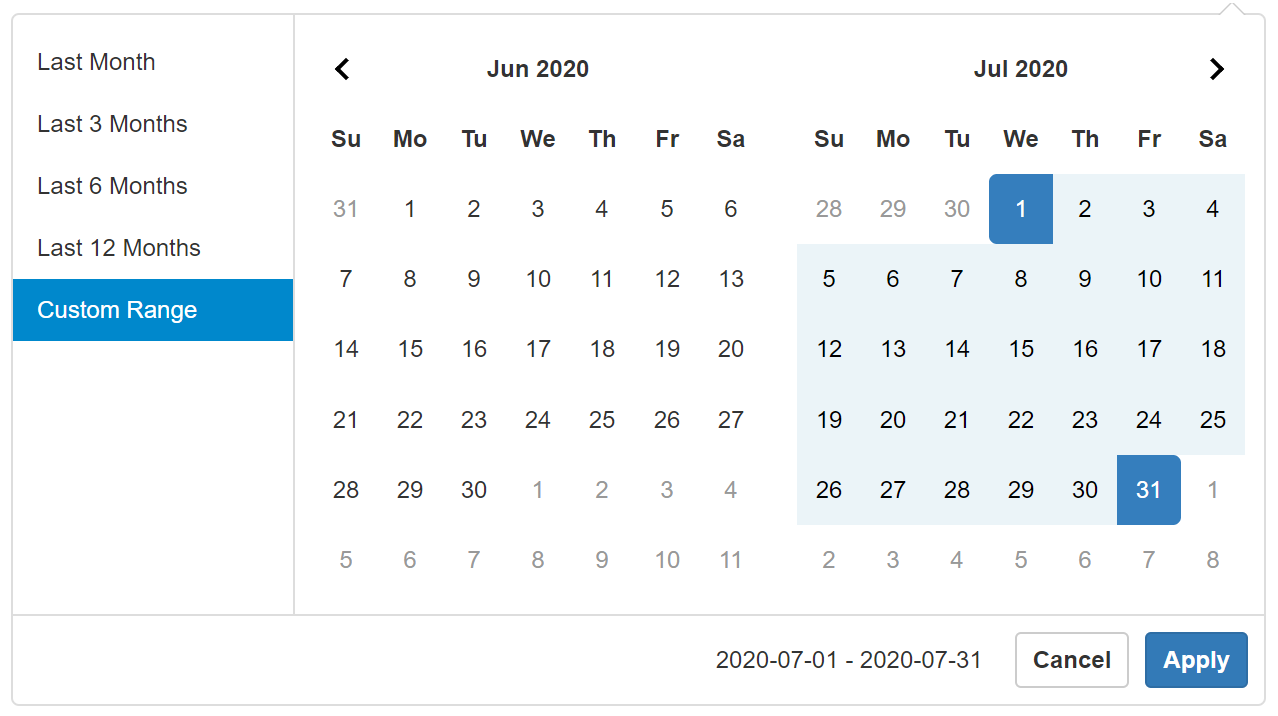
Use the daterangepicker directive in your component by passing in options {} and consuming the selected event. Directive can be added to inputs, buttons or any other html element.
<input type="text" name="daterangeInput" daterangepicker [options]="options" (selected)="selectedDate($event, daterange)" />export class AppComponent {
public daterange: any = {};
// see original project for full list of options
// can also be setup using the config service to apply to multiple pickers
public options: any = {
locale: { format: 'YYYY-MM-DD' },
alwaysShowCalendars: false,
};
public selectedDate(value: any, datepicker?: any) {
// this is the date selected
console.log(value);
// any object can be passed to the selected event and it will be passed back here
datepicker.start = value.start;
datepicker.end = value.end;
// use passed valuable to update state
this.daterange.start = value.start;
this.daterange.end = value.end;
this.daterange.label = value.label;
}
}You can pass global settings that can be overloaded by the options object in the daterangepicker instances. Use the DaterangepickerConfig service to do so. The service provider is set in the daterangepicker module.
import { DaterangepickerConfig } from '@johnmakridis/ngx-daterangepicker';

@Component({
    selector:'my-app',
    template:'<h3>Component Template</h3>'
})
export class AppComponent {

    constructor(private daterangepickerOptions: DaterangepickerConfig) {
        this.daterangepickerOptions.settings = {
            locale: { format: 'YYYY-MM-DD' },
            alwaysShowCalendars: false
        };
    }
}You can programmatically update the startDate and endDate in the picker using the setStartDate and setEndDate methods. You can access the Date Range Picker object and its functions and properties through the datePicker property of the directive using @ViewChild.
import { Component, AfterViewInit, ViewChild  } from '@angular/core';
import { DaterangePickerComponent } from '@johnmakridis/ngx-daterangepicker';

@Component({
    selector:'my-app',
    template:'<h3>Component Template</h3>'
})
export class AppComponent {

    @ViewChild(DaterangePickerComponent)
    private picker: DaterangePickerComponent;

    public updateDateRange() {
        this.picker.datePicker.setStartDate('2017-03-27');
        this.picker.datePicker.setEndDate('2017-04-08');
    }
}You can bind to the events fired by the daterangepicker. All events will emit an object containing the event fired and the datepicker object.
{
    event: {},
    picker: {}
}
Below is the list of events that you can bind into.
Visit the original site for detailed options and documentation http://www.daterangepicker.com/#options
cancelDaterangepicker
applyDaterangepicker
hideCalendarDaterangepicker
showCalendarDaterangepicker
hideDaterangepicker
showDaterangepicker
Below is a sample usage. You can have multiple methods and implement only the events you want.
Create methods that will be called by the events in your component and bind to fired events in the component's template.
@Component({
    selector: 'my-app',
    template: `<input type="text" name="daterangeInput" daterangepicker [options]="options" (selected)="selectedDate($event)"
    (cancelDaterangepicker)="calendarCanceled($event)"
    (applyDaterangepicker)="calendarApplied($event)"
    />`,
})
export class AppComponent {

    public daterange: any = {};

    private selectedDate(value: any) {
        daterange.start = value.start;
        daterange.end = value.end;
    }

    // expected output is an object containing the event and the picker.
    // your method can be named whaterver you want.
    // you can add multiple params to the method and pass them in the template
    public calendarCanceled(e:any) {
        console.log(e);
        // e.event
        // e.picker
    }

    public calendarApplied(e:any) {
        console.log(e);
        // e.event
        // e.picker
    }
}- Though this package still uses JQuery and Bootstrap it has been updated to support Angular 9+
- If your project is not using JQuery for other features this date picker might not be the best option for your project
- This package ports the original Daterangepicker by Dan Grossman for use in Angular. Angular 9 support starts with
Version 9.xof this package
Run ng serve for a dev server. Navigate to http://localhost:4200/. The app will automatically reload if you change any of the source files.
Run ng build to build the project. The build artifacts will be stored in the dist/ directory. Use the --prod flag for a production build.
Run npm run build:module to build the project. The build artifacts will be stored in the dist/ directory.
Run npm run build:module to publish the module on npm registry.